Article Obsolete
A new version of this series has been published. Please refer to the new index for updated articles and ordering. This article is kept for historical reference, but should be considered out of date.
Note: This article is part of a series. See the Index for more information.
Self-promotion: I’ve recorded this series as a screencast for Pluralsight:
(http://www.pluralsight.com/courses/raspberry-pi-home-server)
If you have a Pluralsight subscription, please consider watching it. Thanks!
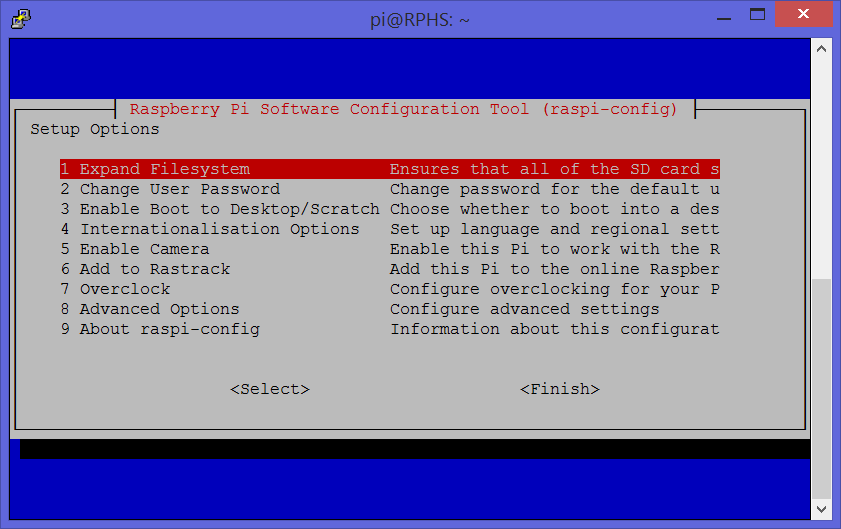
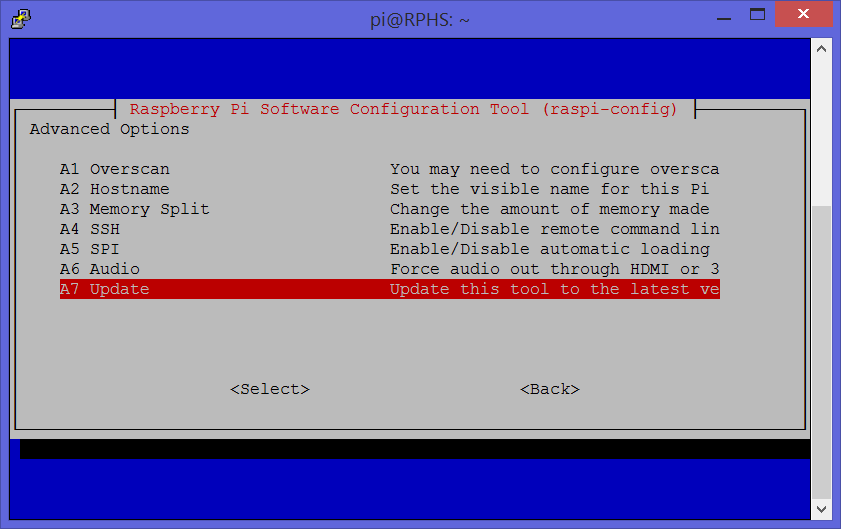
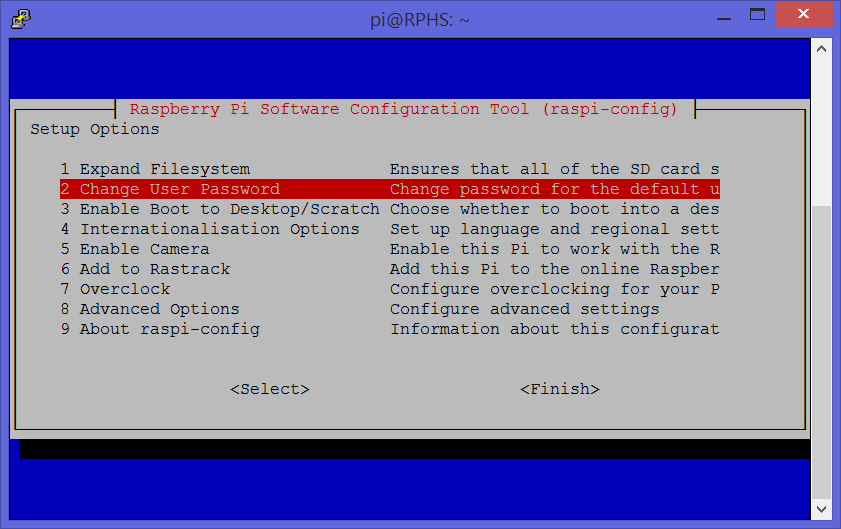
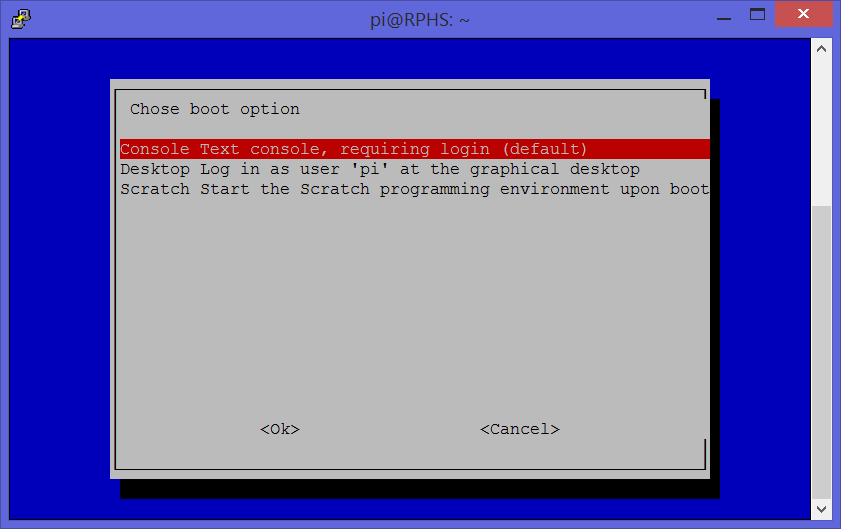
Updates: If you didn’t change the boot option using raspi-config so that the Pi boots to the command-line, the hard drive will auto-mount each time you boot up, and copying the root filesystem to the external drive will fail. Make sure you’ve configured the Pi to boot to the command line, and everything should work as per the original post.
Running the Raspberry Pi off of an SD card is simple, affordable, and very convenient. SD cards are also very small compared to hard drives, though, and they can only be written to a finite number of times. That number is ridiculously large, but some have said that it can still be used up faster than you think by things like virtual memory swap files which are written and re-written constantly.
Whether you believe that or not, one thing is certain; In order to be a useful home server, the Raspberry Pi is going to need access to more storage space than you get from a simple SD card. The Raspberry Pi Home Server is going to need a proper hard drive, and as long as you’re adding a hard drive, you may as well take advantage of its speed and boot the Raspberry Pi from it.
Okay, I’ll level with you. You can’t actually boot entirely from the hard drive, but you can boot mostly from the hard drive. When the Raspberry Pi boots up, it looks to the first partition on the SD card for instructions on what to do next. That boot partition contains just a tiny piece of the boot process, but at least for now, its location is non-negotiable. That’s just the way it is. That’s not to say things couldn’t change in the future. I saw someone on a forum claiming to have done away with the SD card altogether, but I’ll believe it when I see it.
What you can do is to move all the stuff that comes after that first step to a different device, such as the external hard drive. All that stays behind on the SD card is a very small boot partition, everything else moves to the hard drive.
The resulting system should run faster and smoother, and you won’t be using up your SD card’s limited number of write cycles on high-frequency stuff like a virtual memory swap file.
Acknowledgements
This article would not have been possible if not for others that went before me. In particular, Ted Hale’s article at http://raspberrypihobbyist.blogspot.com/2013/07/running-from-external-hard-drive.html is pretty much the blueprint I started from. In turn, that article was based on a forum post by “Rattus” at http://www.raspberrypi.org/phpBB3/viewtopic.php?f=26&t=10914&p=129474&hilit=resizefs#p122476.
I’ve added my own bits, such as consulting the boot/cmdline.txt file rather than simply assuming the root file system’s location, using UUIDs to identify the partitions, and expanding the existing swap file rather than creating a separate swap partition.
I’ve turned these resources into a walkthrough that matches the rest of this series, but I wanted to at least point out where my source material originated.
Gather your tools
This post uses some software packages that are not included by default in the Raspbian distribution. You’re going to need NTFS filesystem support, and the gdisk tool. Install them before continuing.
sudo apt-get install ntfs-3g ntfs-config gdisk
Pick a hard drive
Pretty much any external USB hard drive will do. For my own server at home, I’m using a dual-drive 2TB RAID enclosure (Cavalry CADA-SA2). This might seem like overkill for a Raspberry Pi, but one of my home server’s jobs is to centralize and share my music collection. It took me four solid weeks to rip every CD I own, and I do not plan to repeat that process. My family photos and videos are on that drive as well. Basically, this is all stuff I don’t want to lose due to a hard drive failure.
Note: Yes, I have an offline backup, too, but swapping out a dead drive in a RAID is easier than rebuilding the whole thing by hand.
Linux device names
Before we start, lets take a moment to discuss the way in which Linux refers to devices in general, and more specifically the way it refers to hard drives. Windows users are used to seeing multiple drives show up with different letters. You have your “C” drive, where Windows and all of your programs are installed. Maybe you also have a second hard drive called “D”, or maybe “D” is CD or DVD drive on your computer. “A” and “B” used to refer to floppy drives, and are reserved for historical purposes. Each of these devices is completely separate, and has its own individual root.
Linux has no drive letters. Linux uses what’s called a “unified file system”, meaning that files, folders, and even entire drives appear together under one root. You can see all of these different devices in the “/dev” folder. Take a look:
ls /dev

I won’t go into what all of these entries mean, but you can see that there are a lot of them. If I were to plug in an external hard drive, or perhaps a flash drive, I would see new entries pop up in the list. Here’s another screen shot after I’ve plugged in a flash drive.
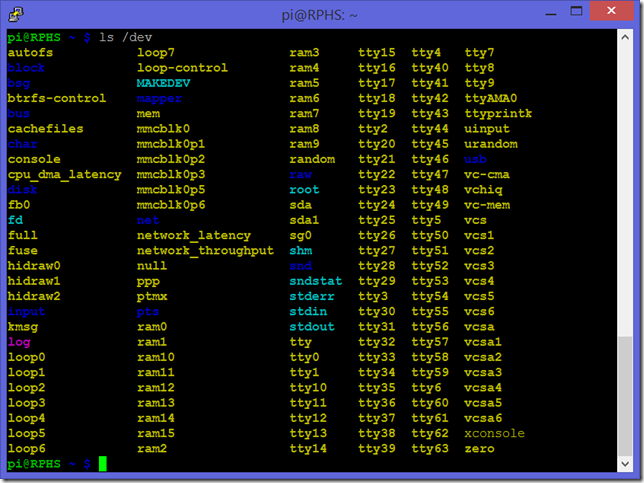
Look about halfway down the third column, and you’ll see new entries called “sda” and “sda1”. These represent the flash drive, and the first partition it contains, respectively.
Storage devices like a flash drive or a hard drive can be divided up into multiple pieces called partitions that can make it appear to be multiple drives. This list of where the partitions begin and end is called the “partition table”, and every drive has one. If there were more partitions on the flash drive, there would be more entries in /dev called “sda2”, “sda3”, etc.
On a computer where drives are connected via SCSI (Small Computer System Interface), “a” would be the first device, “b” would be the second, etc. Drives connected via IDE (Integrated Drive Electronics), or SATA (Serial AT Attachment) have similar concepts of “first”, “second”, etc.
This is not the case with USB. USB devices have no concept of “first” or “second” and so their names are assigned on a first-come, first-served basis. The first drive to be ready gets to be “sda”, the next one “sdb” and so on.
If you only have one drive, then it will obviously always be called “sda”, and there’s no problem, but since you’re building a server, it’s conceivable, and even likely that you will eventually end up with more than one hard drive attached to it. Perhaps one drive will house videos, and another one will have music on it.
Even if you don’t see a need for that yet, you’ll end up filling up a drive eventually, and you’ll want to add another one. As soon as you add more USB drives, however, you can’t count on their names being the same every time the machine starts up. As a result, drives may end up mounted in the wrong places, and programs won’t find their files where they expect them to be because the drive that used to be “sda” was a little slower off the line one morning and got stuck with the name “sdb” instead.
Let’s take care of that particular problem before going any further.
Format the hard drive
If the drive you’re planning to use already has stuff on it, then back its contents up somewhere. and restore them when you’re done. This approach calls for nuking and repaving the whole hard drive.
Caution: Even if you wanted to live dangerously and manipulate the partitions in place, I wouldn’t do it without a backup copy first. There are just too many things that could go wrong. What if the power went out partway through the process? Don’t risk it. Just copy your stuff to another drive, and copy it back when you’re done.
The key to fixing the device naming problem requires us to have a specific kind of partition table called a GUID Partition Table. This is different than the older Master Boot Record which is used by most Windows machines.
In order to create a GPT, you’ll need to use Linux’s Partition Editor (parted) application. Raspbian already includes parted, so there’s nothing to install. Run it with the following command:
sudo parted
You should see something almost, but not quite entirely unlike a command line. To see a list of all the known devices and partitions, type “print all”. Parted should print out a table with two rows similar to this:

The rows in the table represent the partitions. The columns will tell you where each partition begins and ends, how large it is, and what kind of filesystem it contains.
If you see more than one table at this point, then you probably have another drive plugged in somewhere. I strongly advise shutting down and removing all drives other than the SD card before continuing.
The SD card in the image above was created using the Raspbian image file, and has two partitions on it, a small “boot” partition, and the root filesystem partition. If you started by using NOOBS, then you probably have five partitions. Future releases could divide things up differently, so don’t worry if your output doesn’t look like the example.
Attach the hard drive
Plug your external drive into a free USB port on the Raspberry Pi, and give the OS a few seconds to notice it. List the known partitions by typing “print all” again.
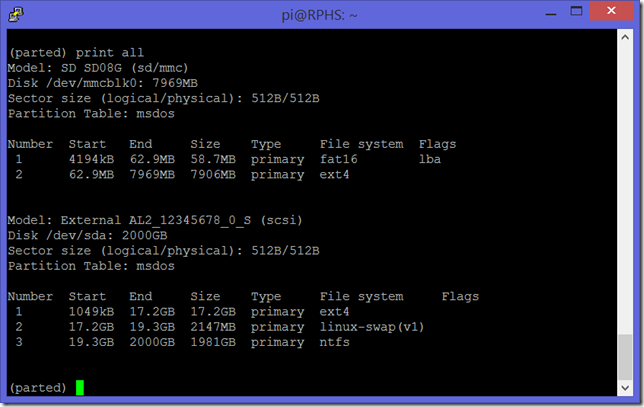
This time, there are two tables. In my example, the second one is the external drive, although the order is not guaranteed here.
Notice the headers above the tables. The header tells you information about the drive in general. In this case, the header tells us that the hard drive was assigned the name “/dev/sda”, that it’s 2TB in size, and that its partition table type is “msdos”. That means it’s using the old MBR-style partition table, and that’s not going to work for this server.
Select the external drive by typing “select /dev/sda”. Type “print” all by itself to make sure. You should see the second table from above again. Read the header carefully, and make sure it’s referring to the external drive, because you’re about to blow away the partition table.
Create a new partition table with the command “mklabel gpt”. Read the warning carefully, and make sure it refers to “/dev/sda”.
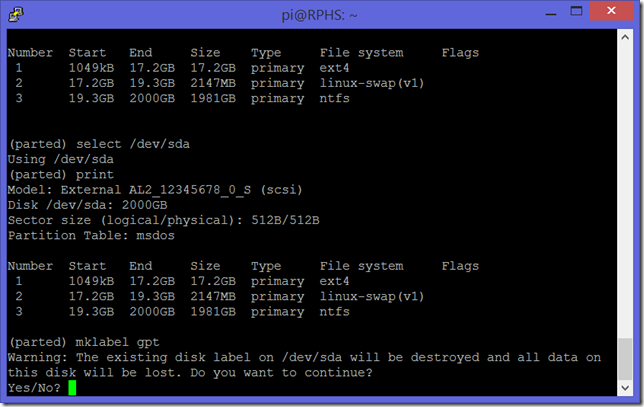
Answer “y” to the prompt, and in a few seconds, you will have a nice blank slate to work with. Check the results with another “print”. The header should now say that the partition table type is “gpt”, and there should be no partitions on it.

Create new partitions
Next, you’ll need to create two new partitions; one to hold the root filesystem, and one to hold general data. You could make one big partition, combining the root filesystem and data storage in one, but there are some benefits to keeping the data partition separate. The root filesystem must be formatted using Linux’s native filesystem, ext4. The data partition, however, can be any type you want, which means you can pick something other, non-Linux computers will understand.
Root Partition
This is where Linux and your programs will go. You can think of it as Windows’ C: drive. The size is up to you, but 16GB is probably fine for the simple server described in this series. If your existing SD card is larger, or you are planning to install a lot of programs, go bigger. Just make sure the partition is at least as large as the SD card you are currently using.
Create a new, 16GB partition starting at the beginning of the drive:
mkpart primary 0GB 16GB
Data Partition
This is where you’ll put your “stuff”, and it should take up the rest of the available drive space. The mkpart command can interpret the beginning and ending parameters in a variety of different formats. Use this ability to create a second partition that begins where the first partition ends, and takes up all the rest of the space on the drive:
mkpart primary 16GB 100%
Finally, use the “print” command again to see the results.
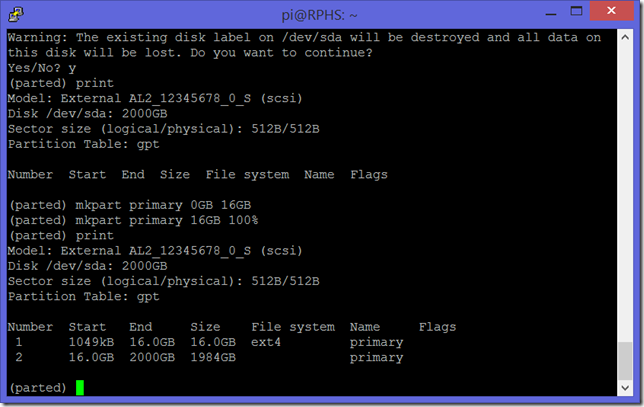
That’s it for the partitions, so type “q” and press enter to exit parted. You can ignore the warning about updating /etc/fstab for now. We’ll get to that soon enough. You now have two partitions, but they’re completely blank at this point.
Copy the old root partition to the new drive
The file /boot/cmdline.txt specifies the location of the root filesystem. You’ll need to edit this file later in order to boot from the hard drive, but for now, you just need to know for sure where the root filesystem currently resides. Show the cmdline file’s contents like this:
cat /boot/cmdline.txt
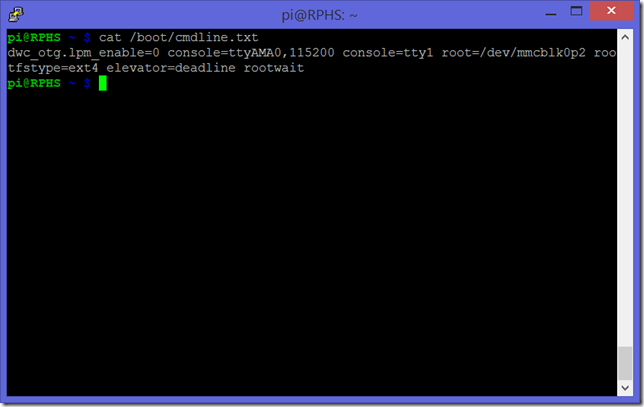
The part immediately to the right of “root=” specifies the device and partition that holds the root filesystem, and that’s the partition whose contents you need to move to the hard drive. In my case, it says “mmcblk0p2”. If you started from the raw Raspbian image, then yours probably says the same thing. If you started from NOOBS, then it’s probably “mmcblk0p6”
Copy the existing root partition’s contents to the new 16GB partition (sda1) on the hard drive, changing the highlighted part to match the current root filesystem path from above.
sudo dd if=/dev/mmcblk0p2 of=/dev/sda1 bs=32M conv=noerror,sync
This can run for quite a while, depending on how large your SD card is. Unfortunately, the dd command doesn’t give you any kind of feedback. In this case, no news is good news. As long as the drive appears to be busy, then keep waiting.
Here’s what that all means:
- “dd” copies things
- “if” specifies the input file, in this case an entire partitions
- “of” specifies the output file
- “bs” specifies how many bytes to copy in one chunk, here it’s 32 MB
- “conv” specifies how to convert things as they are copied
- noerror says to continue if anything goes wrong
- sync does some padding during the copy
When the copy process eventually finishes, check the target partition on the hard drive for errors.
sudo e2fsck -f /dev/sda1
Press enter at the prompts to fix any errors that it finds. You can probably expect one about the free block count, and one about the free inodes count.
Since the image that you just copied over from the SD card is almost definitely smaller than the partition you copied it to, you’ll want to expand it to fill up the available space:
sudo resize2fs /dev/sda1
Format the data partition
That takes care of the root filesystem. Now on to the data partition. Choosing NTFS as the filesystem will allow you to simply plug the drive into any Windows, MAC, or Linux desktop computer and manipulate the drive contents. This can be especially helpful for loading up large amounts of data, such as the family’s music and photo collection, without having to squeeze it all through the network connection.
Format the second partition as follows, filling in whatever name you want the partition to have. I’ve called mine “Data”.
sudo mkfs.ntfs -Q -L Data /dev/sda2
Note: Don’t forget the –Q (Quick) or you’ll be waiting around a while.
Uniquely identifying a drive
Warning: Because the next section involves copying around large strings of unmemorizable data, I recommend performing the steps through a remote SSH window, or from a terminal on the X desktop. The Ids you’ll need to copy need to be copied verbatim, letter for letter, or you’ll find yourself unable to boot, and you’ll have to start over again from your last backup.
Currently, the cmdline.txt file specifies that the root file system is on the second partition of the internal SD card (/dev/mmcblk0p2). We’d like that to say “/dev/sda1” instead, but there’s a problem. As I mentioned earlier, we don’t have any guarantee that this particular drive will be called “sda” in the future. What we need is a way to uniquely refer to this drive no matter what letter it get assigned on any given day.
This was why we built the drive with a GUID Partition Table. Each partition on a GPT device is assigned a universally-unique identifier (UUID).
Note: The difference between GUID and UUID is not important here, they are, for all intents and purposes, the same thing; a very long, randomly-assigned number.
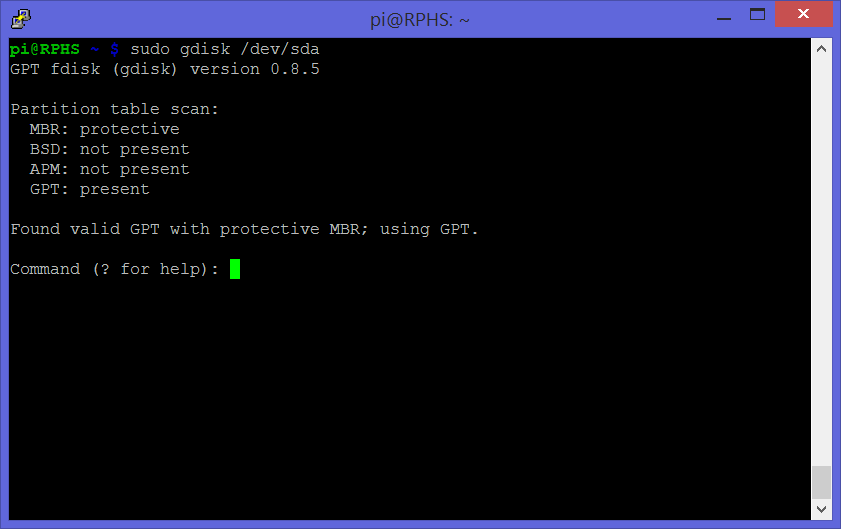
Instead of identifying the root filesystem’s partition by location, we want to refer to it by Id so that it can be found no matter what order the drives were discovered in. Use the “gdisk” package you installed earlier to find out more about /dev/sda1:
sudo gdisk /dev/sda
You should see another not-quite-a-command-prompt like this:
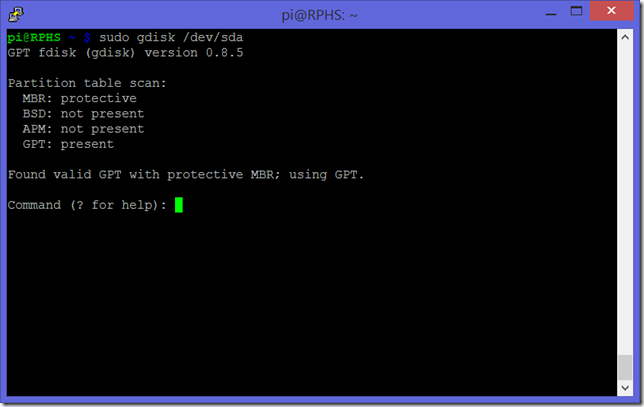
Type “i” and press enter to show information about partitons, then type “1” (one) to identify the partition you are interested in. The partition’s details will be displayed like this:
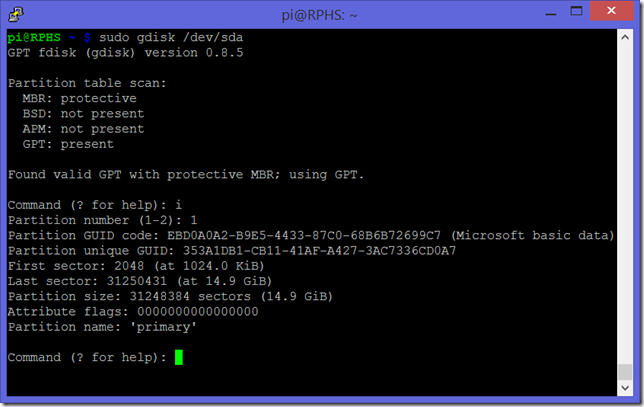
The piece of information we’re interested is the “Partition unique GUID” on the second line, not the “Partition GUID code”. Take a picture, write it down very carefully, or select and copy the text if you are doing this through a remote terminal connection like I am.
Type “q” and press enter to exit the gdisk tool.
Boot Configuration
The new root filesystem’s partition is now uniquely identifiable, but the Raspberry Pi doesn’t know to use it. Edit the /boot/cmdline file to change where the bootloader will look for the root filesystem.
sudo nano /boot/cmdline.txt
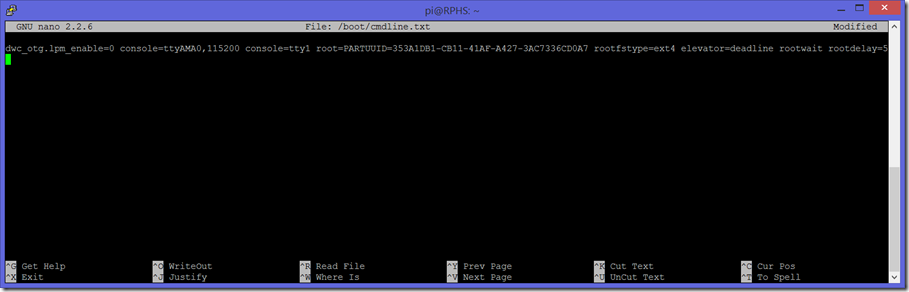
Find the part that says “root=/dev/mmcblk0p…” and change it to “root=PARTUUID=” and whatever your “Partition unique GUID” was from above. Also add the string “rootdelay=5” at the end. This will give the Raspberry Pi time to discover the USB drive before it tries booting from it.
The result should look like this (sorry for the small picture):
Exit Nano, saving your changes (ctrl-x,y,enter)
Reboot (Important, do not skip this step)
Before the next set of changes will “stick”, you’ll need to reboot so that the Raspberry Pi uses the hard drive for the initial load. If you don’t reboot now, nothing you’re about to do will count, and you’ll just have to do it all again. You’ve been warned.
sudo reboot
If everything goes well, you should find yourself back at a login, and you can continue. If something went wrong, go back to your most recent backup and try again.
Mounting filesystems
Partitions and filesystems are not the same thing. Linux now knows what partition to load the OS from, and that’s great, but as things stand right now, it’s still going to mount the root filesystem from the SD card.
To complete the transition to the hard drive, you’ll need to edit the filesystem table. This file controls what gets mounted where, and in what order, and it needs to know where the root filesystem is. Take a look at the current contents.
cat /etc/fstab
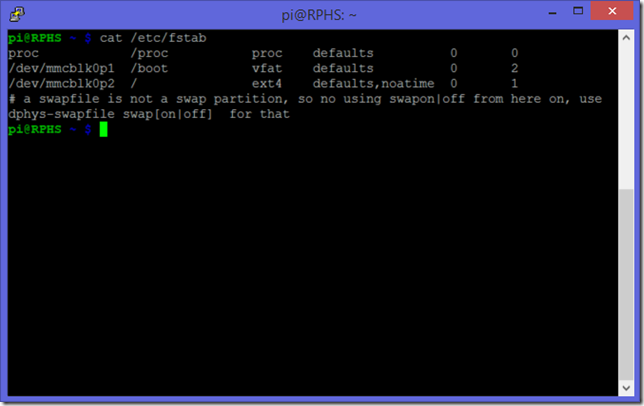
That third line is the root filesystem, which you can tell by the “/” in the second column. Unfortunately, and it’s still loading from the 2nd partition on the SD card (mmcblk0p2). You could change this to say “/dev/sda1”, but that would only work as long as the drive continues to get the name “sda”.
Fortunately, you can use a very similar UUID-based trick here to uniquely identify the filesystem no matter what letter the device gets. Filesystems have UUIDs too, and you can see them all with this command:
sudo blkid
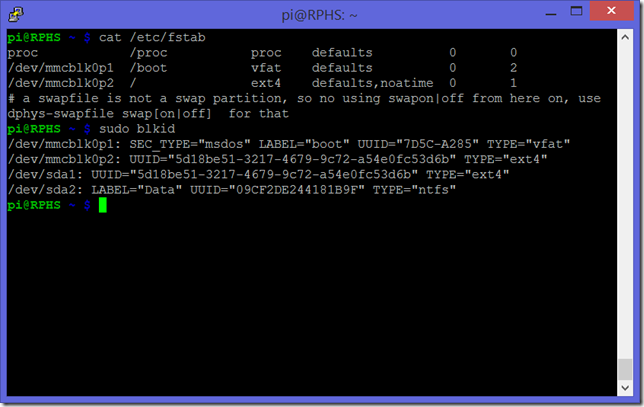
If you look carefully, you may notice a problem. both /dev/mmblk0p2 and /dev/sda1 have the same UUID. So much for being unique, right? This is because of the way we cloned the old root filesystem into a new location. It brought the whole filesystem over, including its UUID. Before you can use a unique Id to identify the drive, you’ll need to make sure it’s actually unique.
You need to give /dev/sda1 a new UUID. You can hand-assign your favorite UUID, or just let the computer pick a random one. Use the following command to assign anew UUID to the first partition on the hard drive:
sudo tune2fs /dev/sda1 -U random
Note: At the time of this edit, there seems to be an issue with the newer “Jessie” release of Raspbian, and it may prevent you from changing the UUID on the partition. If you see an error that says “The UUID may only be changed when the filesystem is unmounted.”, even though it’s NOT mounted, then you’ll need to perform one more tweak. The magic words are
sudo tune2fs -O ^uninit_bg /dev/sda1
I can’t take credit for this one at all. I just found it here. After reading the man page on tune2fs, I still don’t honestly even understand what this has to do with anything, but it does seem to do the trick, so if you get the above error, give this command a shot, then try the “-U random” command again and it should succeed.
Either way, display the device Ids again, just to be sure
sudo blkid
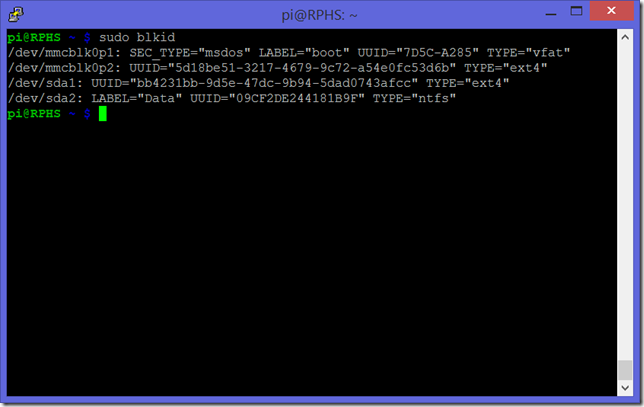
Copy down the UUIDs for /dev/sda1 and /dev/sda2, you’ll need them both in a minute. Then open the filesystem table in an editor.
sudo nano /etc/fstab
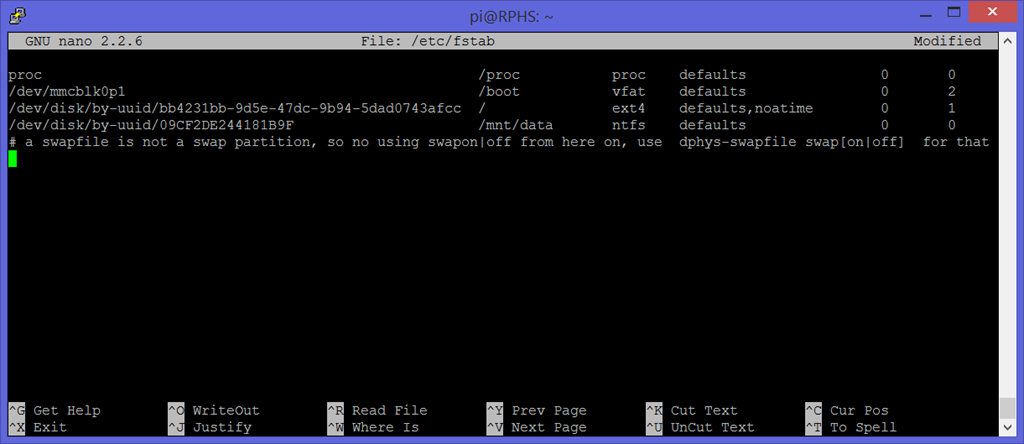
Change “/dev/mmcblk0p2” on the third line to “/dev/disk/by-uuid/” and the new UUID you just assigned to /dev/sda1. Add another line for /sda2, substituting its UUID, and mounting it as /mnt/data, with a filesystem type of “ntfs”.
The end result should look like this:
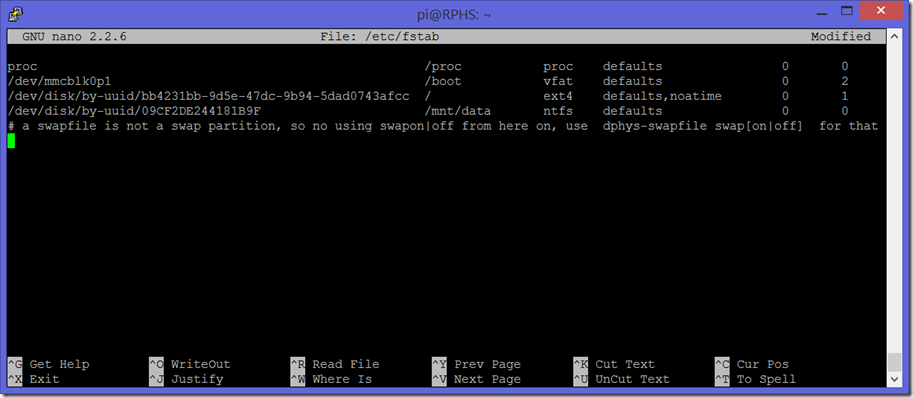
Don’t worry about the columns lining up, it doesn’t matter, but I’m presenting mine to the public, so I’ve gone ahead and made it pretty
Exit Nano, saving your changes (ctrl-x,y,enter)
The system should be just about ready to boot from the hard drive, but there’s one more thing to take card of before we do that. Currently, the filesystem table says to mount the second partition at /mnt/data. Before that can succeed, you need to create a folder in that location. You can think of it as a placeholder where the actual drive will appear later on.
sudo mkdir /mnt/data
That’s it. you’re ready to reboot again, and this time, everything should be faster.
sudo reboot
You’ll notice that the “ACT” light on the Raspberry Pi will not blink much anymore. That’s because the SD card is no longer being accessed for anything other than the boot partition. The hard drive’s activity light will now blink where the Raspberry Pi’s activity light used to.
When the system has rebooted, double-check your filesystem table to make sure your changes are still there.
cat /etc/fstab
If you see /dev/mmcblk0p2, and no line for your data partition, it’s because you skipped that “Reboot” step above. See? I told you it was important. Redo everything in the “Mounting filesystems” section, and reboot again.
Swap configuration
One thing you may have noticed if you’ve looked at other walkthroughs for booting from the hard drive is that they usually create a “swap” partition on the hard drive to be used as virtual memory.
If you look back at the filesystem table from the beginning of this post, though, you’ll notice that Raspbian never had a swap partition in the first place. That’s because Raspbian is set up to use swap files instead of swap partitions. Raspbian’s swap file lives at /var/swap, and since we just moved the whole root filesystem onto the hard drive, the swap file came along for the ride.
At this point, you’re already running your swap file from the hard drive, and you didn’t even have to do anything. Check it out with the “swapon” command:
sudo swapon –s
This shows the swap summary, which will tell you what swaps are in use. It should have one entry in it (/var/swap). It’s pretty small, though; only 100MB:
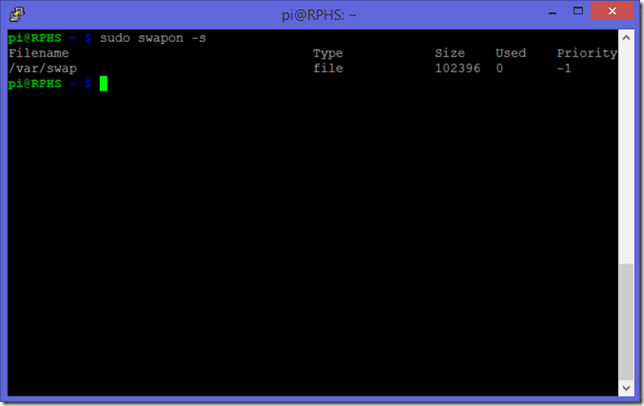
The partition we created for the root filesystem is 16GB (or more if you so chose). There’s plenty of space left to expand the swap file to something roomier.
Edit the swap file configuration:
sudo nano /etc/dphys-swapfile
The configuration file that came with Raspbian only has a single line in it which says “CONF_SWAPSIZE=100”. This is the size of the swap file in megabytes. Change the value to 2048, which will create a 2GB swap file.
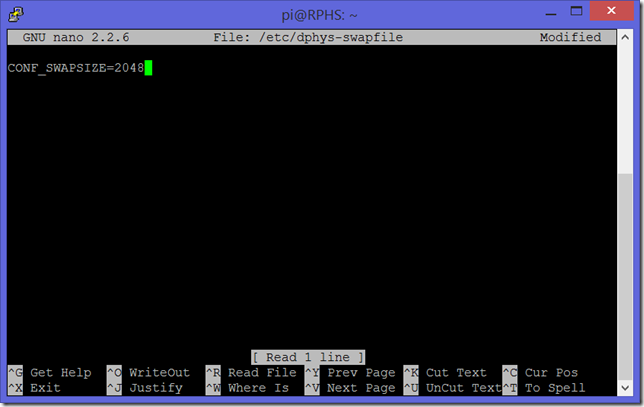
Close Nano, saving your work (ctrl-x,y,enter).
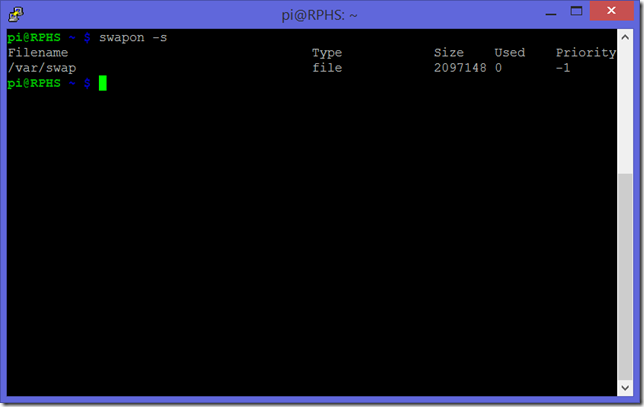
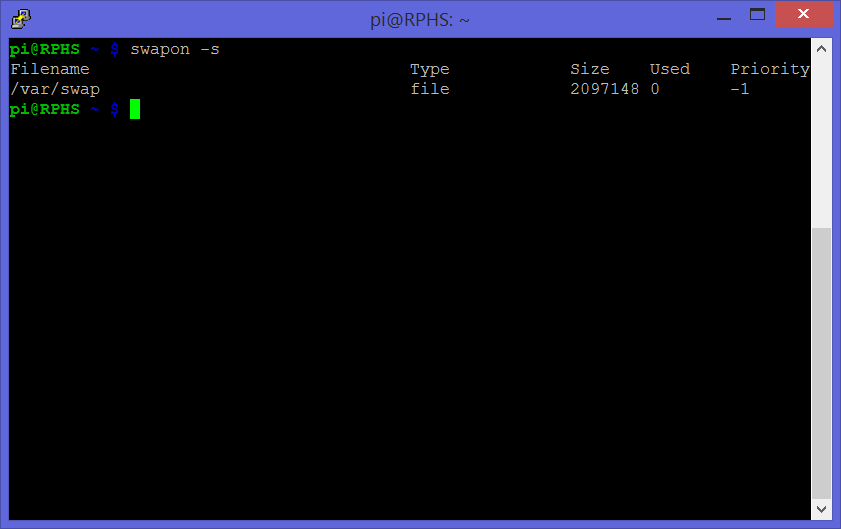
Reboot one more time to apply the changes, and check them by typing “swapon –s” again. You should see a table similar to the first time you ran this command, only now the swap file is much larger:
Wrapping up
You now have a Raspberry Pi that boots (mostly) from an external USB drive. It also uses this drive for its virtual memory swap file. The whole system should run more smoothly now, and you won’t have to worry about using up your SD card, if that’s the sort of thing you worry about.
Although most of the important stuff is on the hard drive, you should probably make at least one more backup of the SD card for safety. I may cover backing up the root filesystem from the hard drive later on in another post, or update this one with the changes.
What’s next?
In the next post, we’ll put the new drive to work sharing files over the local network.























 MelGrubb.ToBlog()