The Raspberry Pi Home Server series is now on Pluralsight

I’ve been working on this for the last couple of months, and I’m excited to announce that I’ve turned this series into a course for Pluralsight. The course is available at:

http://www.pluralsight.com/courses/raspberry-pi-home-server

For those that don’t know already, Pluralsight is a subscription-based online training site. Don’t worry, I’m not going to take the blog posts away. I would never do that to you. Sometimes you just want to SEE something being done instead of just reading about it, though. You can follow along with the bouncing ball, and build your own server along with me.

The course is divided up in much the same way as these blog posts, with each module adding on one more piece of the puzzle, although the order is a little different, and some items (like Transmission) weren’t included.

If you have a Pluralsight subscription, please consider watching the course. If it does well, I might be able to do more of them.

Posted in Computers and Internet | 8 Comments

Raspberry Pi Home Server: Part 15b – Adding more Pis to the UPS

Note: This article is part of a series. See the Index for more information.

Self-promotion: I’ve recorded this series as a screencast for Pluralsight:
(http://www.pluralsight.com/courses/raspberry-pi-home-server)
If you have a Pluralsight subscription, please consider watching it. Thanks!

Updates: I haven’t had any reports of issues with this post under the Jessie release of Raspbian, so I assume it all still works. I don’t have a spare UPS to test with, though, so unless someone reports an issue under Jessie, I think everything still works.


Adding more Pis to the same UPS (optional)

With Raspberry Pis being so cheap, you may very well have more than one. Perhaps you’ve split CrashPlan or MiniDLNA off onto a Pi all by itself. Maybe you went a little crazy and built a Pi-powered super-computer cluster. If, for any of these reasons, you have multiple Pis, and you’d like them to share the same UPS, how will they all know when the power’s gone out? After all, you can only plug the USB cable into one of them, and buying a separate UPS for each Pi would be overkill, right?

The great thing about NUT being split up into layers is that you can run multiple client instances against one server. Normally, this is the sort of thing you’d only see in a large server rack, where you’ve assigned one computer to watch the battery and tell all the others when the power goes out. It’s not the sort of thing regular home users usually care about, but Raspberry Pi owners are not regular home users.

If you do happen to have multiple Pis, getting them all to share a single UPS and shut down gracefully is actually really simple.

Prerequisites

For this article, I’m assuming you’ve already completed the standalone version in the previous article. If you came straight here from a link or a search, go look at that article first, and get everything working before continuing.

Reconfigure NUT on the server

In the previous article, NUT was configured in “standalone” mode, which means that the server and client were on the same machine. It also means that the server isn’t expecting any other clients to be talking to it, so it simply isn’t listening for them.

Log in to the Raspberry Pi that is connected to the UPS. With a little bit of reconfiguration, it will become a NUT server. Edit the NUT configuration file.

sudo nano /etc/nut/nut.conf

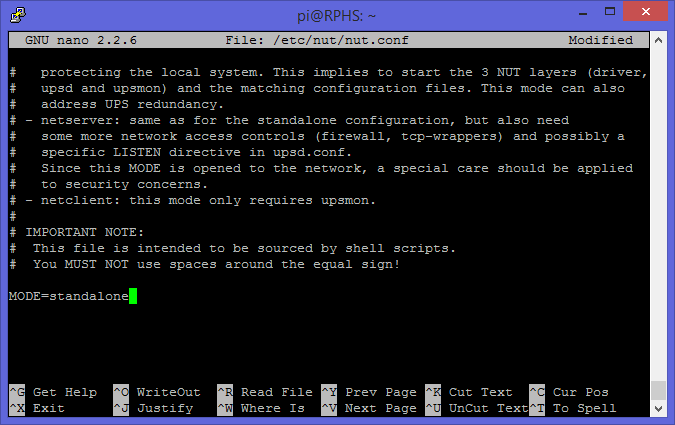
Scroll down to the bottom, and change the mode from “standalone” to “netserver” (not “nutsever”, mind you).

image

Close and save the file (ctrl-x, y, enter)

Next, you’ll need to configure credentials for the remote machines to use when connecting to the server.

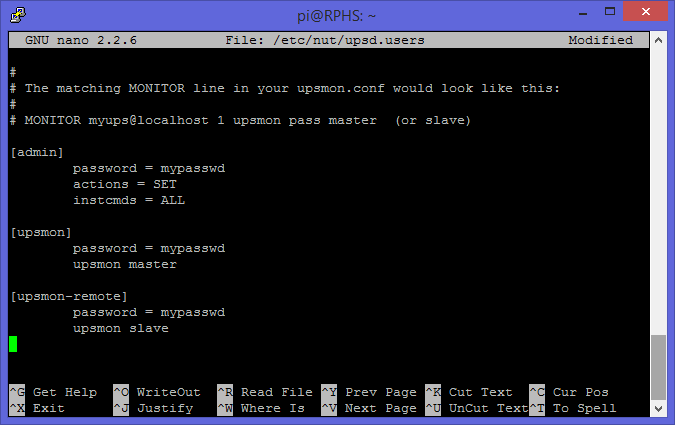
sudo nano /etc/nut/upsd.users

Add a new user at the bottom. You can call it anything you like, but I’ve chosen “upsmon-remote”. Give it a password, and specify that it is a upsmon slave.

image

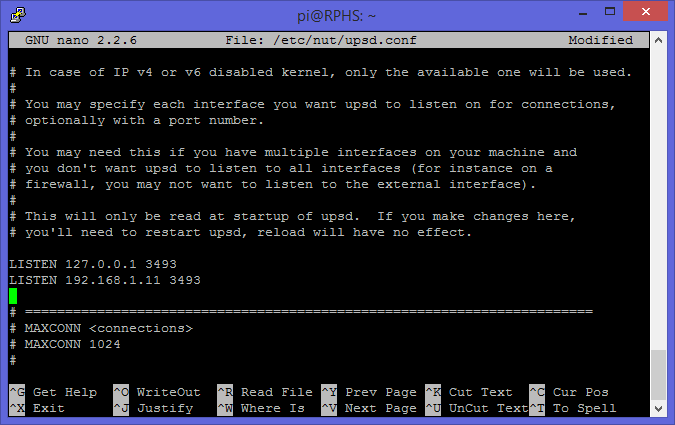
Next, you need to tell the NUT server to listen for client connections. Edit the UPS daemon configuration file.

sudo nano /etc/nut/upsd.conf

Find the “listen” section, and add a listen directive using the IP address of your server. If you don’t configure anything, the NUT server will listen only to the computer that it’s on, which is localhost, or IP address 127.0.0.1. Since you now want NUT to listen for clients on other systems as well, you’ll need to specify a real IP address.

Adding the server’s own IP address might seem a little redundant, but remember that NUT is made to work on all kinds of equipment, and it’s very common for larger-scale servers to have multiple network interface cards, and you’d only want it to listen for NUT traffic on the “inward” facing one.

Because you will still want to run a ups monitoring client locally on the server itself, and you’ve now overridden the defaults by specifying one IP address, you’ll need to explicitly add an entry for localhost (127.0.0.1) back in as well, otherwise the local ups monitor will stop working. The result should look something like this:

image

Note: You’ll need to substitute your own Pi’s address in place of 192.168.1.11. That’s just the address where my own Pi server lives. The default port that NUT listens to is 3493. If you wanted to change that, for some reason, you would do that here. I’m going to leave it at the default port, though.

Reboot the server to get things reconfigured and restarted.

sudo reboot

Double check that you can still communicate with the NUT locally:

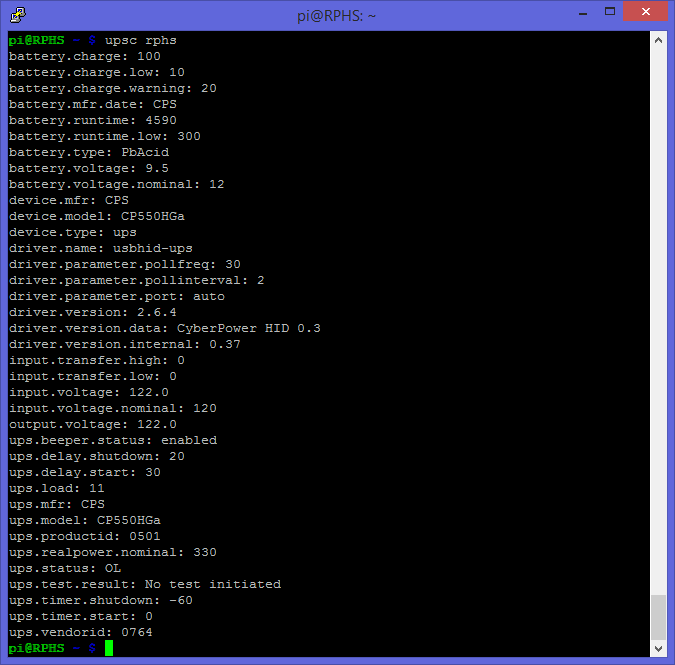
sudo upsc rphs

You should get the same kind of listing of UPS settings and status as you did in the previous article:

image

If you get some kind of error instead, make sure that you added an entry for localhost (127.0.0.1) in addition to the Pi’s regular IP address.

You can actually run NUT configured this way, but without any clients connected, and it will behave in pretty much the same way as it did in standalone mode, but it will still be listening for additional clients over the network.

Configure the client machines

Install NUT on each additional Pi that you intend to run from the UPS.

sudo apt-get install nut

For these additional client-only installations, you can skip configuring a UPS driver and proceed directly to configuring the client.

sudo nano /etc/nut/nut.conf

Go to the bottom of the file, and set MODE to “netclient”.

image

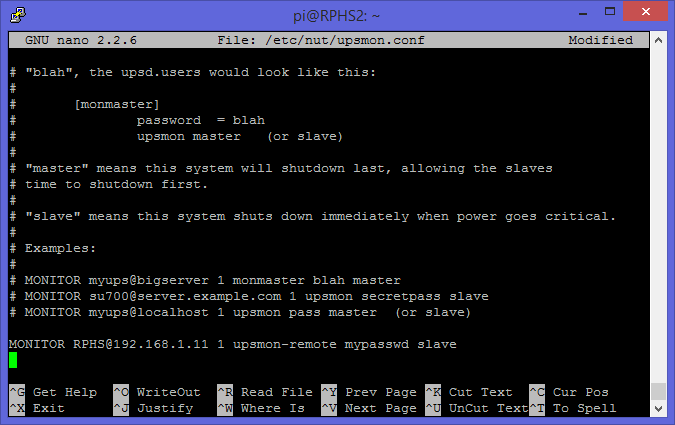
Next, edit the upsmon configuration file.

sudo nano /etc/nut/upsmon.conf

This time, configure the client to talk to the remote server for information, and configure it as a slave. This time, the “system name” will not be “RPHS@localhost”, but “RPHS@192.168.1.11” (again, substitute your server’s IP address).

If you remember from last time, the first part of this “system name” is the name you gave your UPS, and the second part is the address of the server it’s attached to. The name and password should match the “upsmon-remote” name and password from above, and the final parameter will be “slave” instead of “master”. The result should look like this:

image

The difference between “master” and “slave” has to do with when each one will shut down. When the UPS says the power has dipped below the safe threshold (20% for my UPS), the server (the master), will tell all of the clients (the slaves) to shut down first before shutting down itself.

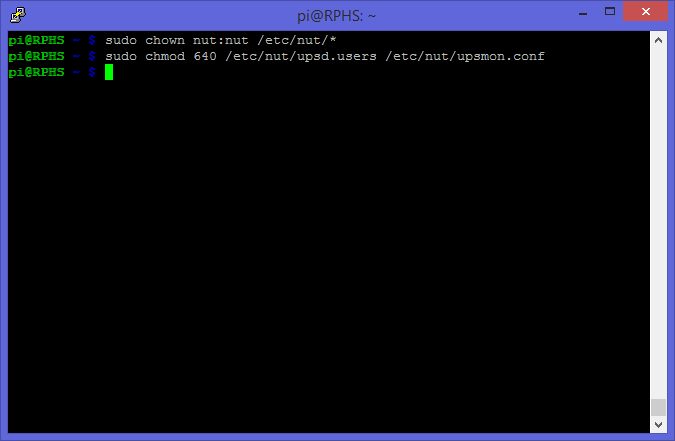
Like on the server, you’ll need to set up the permissions so that the NUT configuration files are readable by the nut user. Unlike the server, though, you don’t need to touch the upsd.users file because users are defined on the server, not the client.

sudo chown nut:nut /etc/nut/*

sudo chmod 640 /etc/nut/upsmon.conf

Check connectivity

From the slave system, you can issue the same kinds of commands you could run from the master system. Use this to verify that everything is communicating properly.

sudo upsc RPHS@192.168.1.11

I’ve used the IP address because name resolution didn’t work for me. It’s one of those things I’ll probably learn to set up someday, just not today.

image

Test the system

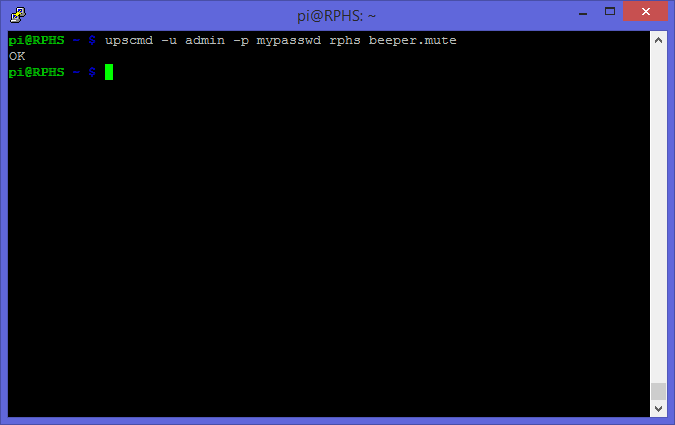
Once again, unplug the UPS, and you should see warning messages appear on both the server and client(s) right away. You may want to mute the beeper if your hardware supports it, and plug something in to help the battery drain faster.

Here is what it looks like from the server’s perspective:

image

And this is from the client’s perspective:

image

Apart from the name of the server (RPHS vs. RPHS2), and the fact that the client shut down first, you wouldn’t be able to tell the difference between the two, even though only the server is actually attached to the UPS.

Lather, Rinse, Repeat

Repeat as necessary for each additional Raspberry Pi you are plugging in to the same UPS. That’s all there is to it. When the power goes out, all your Pis can now shut themselves down safely.

Posted in Computers and Internet, Home Server, Raspberry Pi | 10 Comments

Raspberry Pi Home Server: Part 15–Power Failures

Article Obsolete

A new version of this series has been published. Please refer to the new index for updated articles and ordering. This article is kept for historical reference, but should be considered out of date.


Note: This article is part of a series. See the Index for more information.

Self-promotion: I’ve recorded this series as a screencast for Pluralsight:
(http://www.pluralsight.com/courses/raspberry-pi-home-server)
If you have a Pluralsight subscription, please consider watching it. Thanks!

Updates: I haven’t had any reports of issues with this post under the Jessie release of Raspbian, so I assume it all still works. I don’t have a spare UPS to test with, though, so unless someone reports an issue under Jessie, I think everything still works.


My previous home “server” before embarking on this series was just an old laptop of mine. It wasn’t particularly strong, but it could run CrashPlan, and serve files. One advantage it had was that, being a laptop, it had a built-in battery and knew how to shut itself down if the power went out. Of course, I had to go downstairs and start it back up once the power was restored, but at least nothing got corrupted.

If you have a desktop computer at home or at work, you may also have an Uninterruptable Power Supply (UPS) under your desk. This is basically a battery big enough to power your computer and monitor long enough for you to save what you are doing and shut down gracefully. Most modern UPS units also have a USB port on them and come with software so that when the power goes out, the UPS can tell the computer to suspend, hibernate, or shut itself down depending on how you’ve configured it.

I’ve had a one of these small UPS units at home for years now, although it hasn’t been running my computer, which is always a laptop anyway. Instead, the UPS is there to keep my overly-sensitive cable modem and network router from getting freaked out by the occasional power glitch. I used to have to reset my router once every couple of weeks, but since I put it on a battery I’ve hardly touched it.

It shouldn’t surprise you that there are UPS options available for the Raspberry Pi as well. Take the CW2 “Pi UPS” (http://www.piups.net), for example. This product will work fine for most simple Raspberry Pi projects running off of an SD card, but my particular installation has a 2TB RAID enclosure hooked up to it. I don’t think AA batteries are going to cut it. What I need is something that will keep the hard drives spinning long enough for the Pi to shut down safely.

I’ve had my Raspberry Pi Home Server plugged into this same UPS for months now, because it makes for a conveniently-placed power strip and evens out the power supply. My UPS is a little older, though, and doesn’t have a USB connection for communicating with the computer attached to it. It does have a serial port, but a few experiments with serial to USB adapters got me nowhere. The level of sophistication on older UPSes (like mine) can be pretty low, and they often use the serial port in a way that doesn’t exactly count as proper serial communication.

With that in mind, I’ve replaced my old UPS with a newer one, specifically a CyberPower SX550G. I chose this model because:

  1. It has a USB connection to the computer.
  2. It was on sale for $40.
  3. I’m cheap.

It’s a 550VA battery backup, which probably wouldn’t get you very far with a full-sized desktop computer, but it should be more than adequate for a Router, a Raspberry Pi, and a couple of drives. It could probably run those devices for a good couple of hours if needed, actually. I haven’t done the math, but if not for the external drives, it could probably run the Pi for days.

So how can we get the Pi to use it intelligently? It certainly didn’t come with a ready-made software package for the Pi, although Linux software is available for it.

Network UPS Tools (NUT)

The Network UPS Tools package, aka “NUT” (http://www.networkupstools.org), is a collection of programs meant to make UPS hardware from different manufacturers work in roughly the same way. It’s available for a wide variety of platforms, one of which happens to be Debian Linux, of which Raspbian is a variant.

NUT consists of three major components

  1. A software driver to communicate with your particular UPS using whatever protocol it supports, and translate that into a common API.
  2. A daemon (service) that connects to the driver and acts as a communication hub.
  3. A client program that can perform various tasks such as shutting down the computer when the power state reported by the server changes.

There are a few other components, such as command-line utilities that can tell you about the current state of the UPS, or allow you to make changes to the UPS configuration. For the most part though, we’re concerned with these three components.

Note: NUT works with a wide range of UPSes, but without owning one from each different manufacturer and/or vintage, I can’t create instructions specific to each model. Questions about how to get NUT working with your particular UPS are best addressed on the project’s own site, or its GitHub site. For the most part, though, they should all work the same way. If your UPS is older, and doesn’t have a USB port, but has a 9-pin serial port, you are totally on your own. Maybe you could hack something together using the GPIO pins. If so, you’re a better man than me.

Installing Network UPS Tools (NUT)

Simplicity itself. Like most things we’ve installed in this series, NUT is available through apt-get

sudo apt-get install nut

Select your driver

Find the driver for your particular UPS by looking at the compatibility list on the NUT site (http://www.networkupstools.org/stable-hcl.html). If you can purchase a UPS that’s on the list, then that’s great. If you don’t find your UPS on the list, that doesn’t mean it won’t work, though. For instance, my new UPS isn’t on the list, but a ton of other devices from the same company are, and they all seem to use the same driver (usbhid-ups). I gave it a shot, and it works just fine. YMMV

Configure the UPS

Once you’ve identified the driver for your UPS, you’ll need to edit the ups configuration file.

sudo nano /etc/nut/ups.conf

This file, like all of the NUT configuration files, is very well documented inline, and explains all of its different options. At the bottom of the file, you’ll add an entry for your UPS. You’ll need to give it a name, specify a driver, and give it a description. There is also an option to specify a port. For units that connect via a USB cable, this is meaningless, but it’s still required, so use the value “auto”.

[RPHS] driver = usbhid-ups port = auto

desc = “CyberPower SX550G”

The name in square brackets is so you can tell multiple UPS devices apart in case you have one NUT server monitoring multiple devices. Unless you’re building something really esoteric, you probably only have one UPS like me, so for lack of anything better to call it, I’ve named mine “RPHS” after the computer it serves. You can put anything you want in the description, so I just put the make and model of the device for reference. The end result should look something like this:

image

That’s it for configuring the UPS itself. Close and save the file (ctrl-x, y, enter).

Configure the daemon

A daemon is the Unix/Linux term for any invisible background process. Windows folks call these “services”. For NUT, there is a daemon that is in charge of listening to the UPS via the driver, and telling the client applications what to do. Edit its configuration file like this:

sudo nano /etc/nut/nut.conf

For this simple application, where both the client and the server programs will be on the same computer (the Pi), go to the bottom of the file and set the MODE to “standalone”.

image

Close and save the file.

Verify hardware configuration

To check whether the driver and daemon are configured correctly, you can simply start up the service.

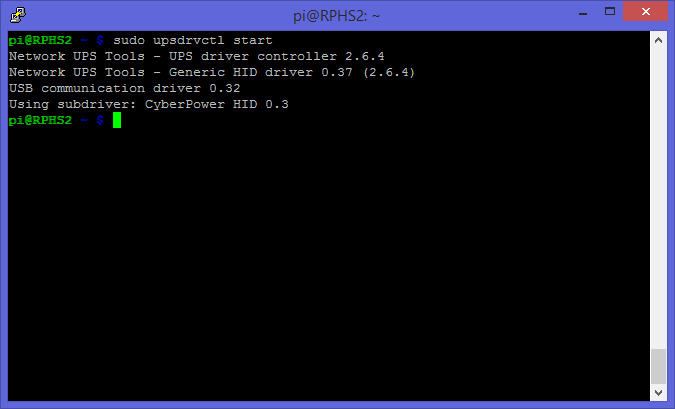
sudo upsdrvctl start

You should see a message confirming your configuration. It should look something like this:

image

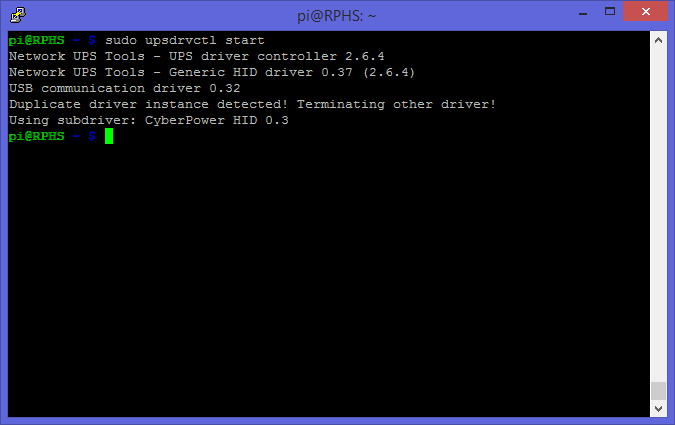
The first time I tried to connect to the UPS I got the error “could not detach kernel driver from interface 0: Operation not permitted”. I rebooted and tried again, and everything was fine.

image

Notice that this time I got a message about “Duplicate driver instance detected”. This is because now that I have things configured correctly, the driver started up automatically when I rebooted. Not only that, but the daemon should be running now as well. Check it like this:

sudo service nut-server status

You should get a message that the NUT server is running.

image

You can now ask the NUT server questions about the status of the UPS using “upsc”, one of several command line utilities that apt-get installed. Substitute the name you gave your UPS above as needed.

upsc rphs

You’ll get quite a long list of information about the configuration and status of your UPS.

image

Depending on the make and model, you’ll get more or less detailed information.

Configure the monitor

That’s two out of the three layers. Last but certainly not least is the “upsmon” client. This is the part that will actually shut down the computer when the NUT server says so.

Define credentials that the monitor client program will use to connect to the server.

sudo nano /etc/nut/upsd.users

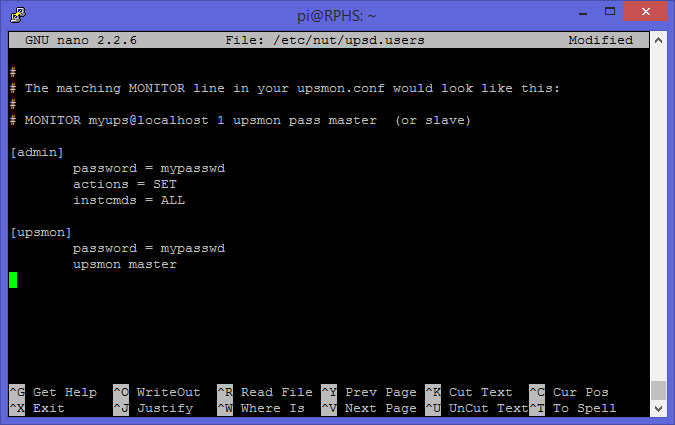
Go to the bottom and define two users, one called “admin” and one called “upsmon”. You can actually name them anything you want, but naming the “monitor” user after the program that will use it (upsmon), seems to be the convention. You give the “admin” user rights to issue commands and change configurations with the “actions” and “instcmds” settings. The “upsmon” user has no such rights, it’s just there to listen and shut the computer down when the power goes out.

[admin]

password = mypasswd

actions = SET

instcmds = ALL

[upsmon]

password = mypasswd

upsmon master

image

Since this is the computer that’s actually in charge of monitoring the UPS, set the “upsmon” setting to “master”.

Next, edit the configuration file for the upsmon client program.

sudo nano /etc/nut/upsmon.conf

This configuration file is pretty long, and has a lot of options. The one we’re interested in is about five pages down. Look for the example lines that start with “MONITOR”, and create a new entry on the blank line below that section. There are six parts to this setting.

  1. The keyword “MONITOR”. It does have to be all uppercase, by the way.
  2. The “system” name in the format UpsName@HostName. I called my UPS “RPHS”, and since we’re running in standalone mode, we can just use “localhost” for the host name, so the resulting “system name” is “RPHS@localhost”.
  3. The “power value”. This only applies to big servers with multiple redundant power supplies. Just set it to “1”.
  4. The user name that you established in the upsd.users file (upsmon) .
  5. The password that you established in the upsd.users file (mypasswd).
  6. A value indicating whether this computer is the master or slave. You can read about the distinction in the upsmon.conf file itself, but for a standalone system like this, use “master”.

When you’re done, it should look something like this.

image

Close and save the file.

Next up, a little permissions wrangling. You need to set up the various configuration files to be readable by the NUT components that use them, but not by other users. This prevents anyone from reading the password, and sending unauthorized commands to the server to shut everything down. It may be overkill for a simple home network, but it’s also really simple to do.

sudo chown nut:nut /etc/nut/*
sudo chmod 640 /etc/nut/upsd.users /etc/nut/upsmon.conf

You should get no complaints

image

UPS Commands

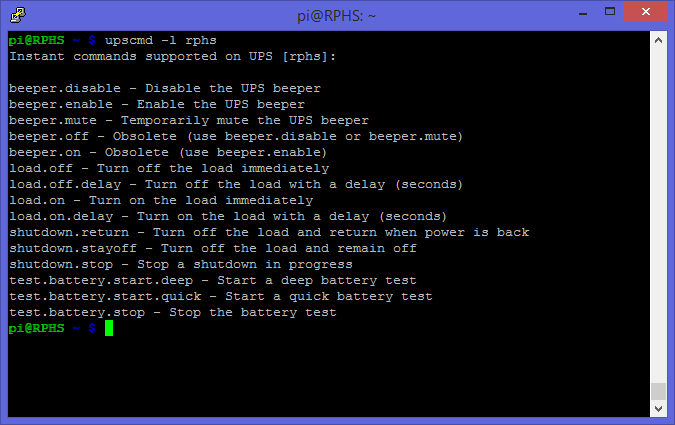
Depending on the sophistication of your particular UPS, you may be able to send it commands to do things like initiate a self-test, or simulate a power failure. You can get a list of what your particular UPS supports with sudo upscmd –l rphs

image

The number and type of commands will vary by manufacturer and model, so your output may not match mine. There are a few commands here worth mentioning, though. The “load.off” command will shut down the UPS immediately. Think of it as the “goodbye world” command. You generally don’t want to mess with that one. You could actually use this command to turn a second UPS on and off, allowing your Pi to control the power to something else. I’ll leave that one up to your imagination, but there are certainly cheaper ways to automate things.

The “beeper.mute” command will temporarily silence the warning beep that my UPS makes when the power goes out. This will make testing the system a bit less annoying here in the next section. The “beeper.disable” command would probably have the same effect, but on a more permanent basis.

Testing the system

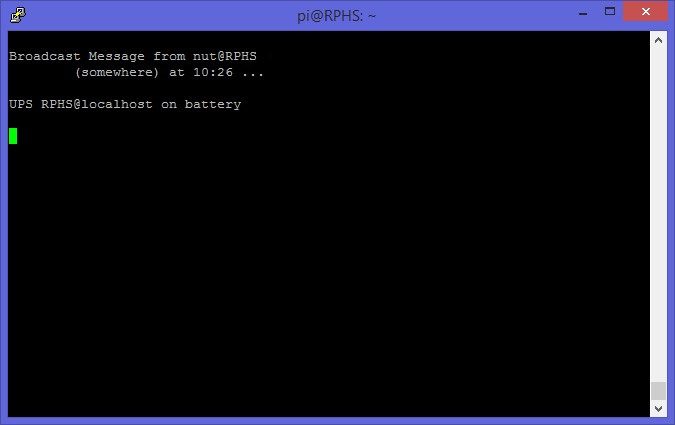
At this point, you can unplug your UPS from the wall and, after a short delay, you should get a message that the system is now running on battery power.

image

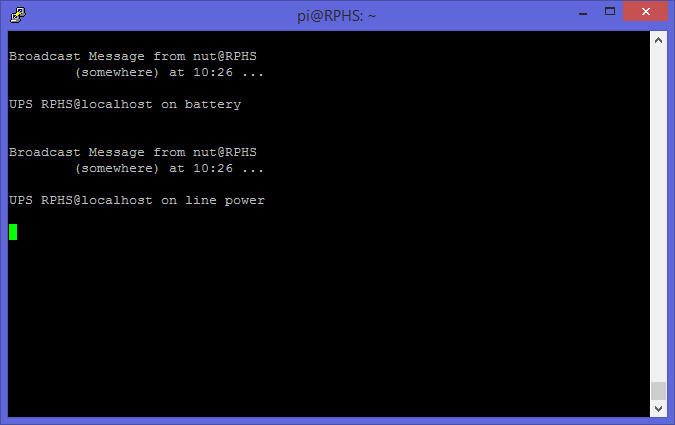
If you plug it back in, you’ll get another message that power has been restored.

image

So far, so good. Now for the real test. Unplug the UPS from the wall and leave it unplugged. If your UPS supports it, now is a good time to issue that “beeper.mute” command.

image

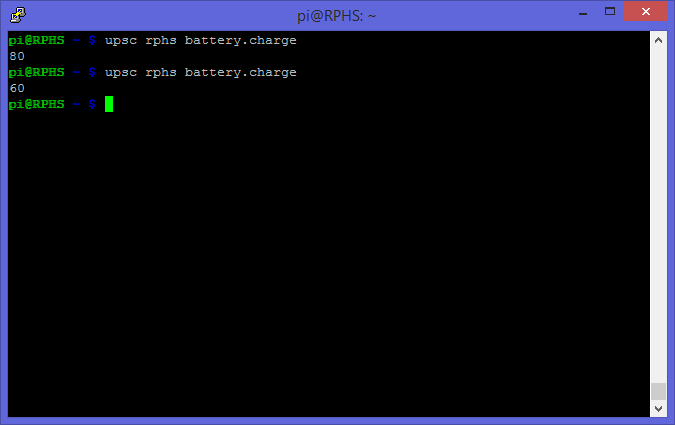
You can sit and stare at the screen, wondering when it will shut down, or you can periodically check on the status to see how fast you’re using up the battery. I plugged my laptop charger and a television into the UPS to speed things along. A good, old-fashioned 100-Watt bulb would help, too.

image

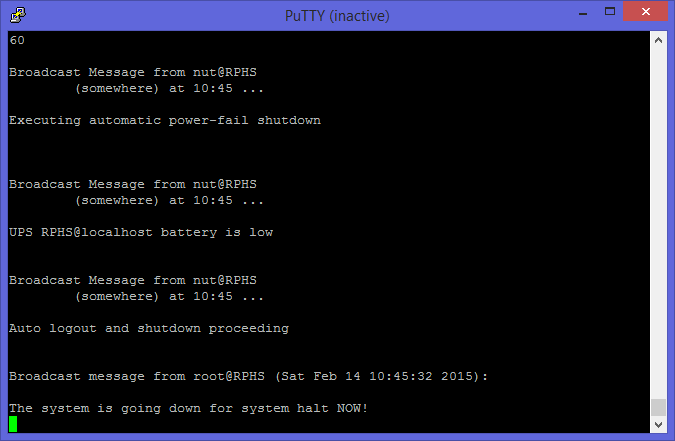
Eventually, when the battery gets low enough, the system should shut itself down.

image

Plug the UPS back in, and if you’re lucky, everything will start back up again. For some models, even after the power is restored, you may have to physically press a button on the UPS to start everything back up. Mine starts up on its own, so a few minutes later I was back up and running.

What’s next?

Next up, I’ll show you how to attach additional Pis to the same UPS, and have them all shut down when the power gets low. I was going to make it all part of this post, but this one’s long enough already, don’t you think?

Posted in Computers and Internet | 36 Comments

Raspberry Pi Home Server: Part 14, BitTorrent Sync

Article Obsolete

A new version of this series has been published. Please refer to the new index for updated articles and ordering. This article is kept for historical reference, but should be considered out of date.


Note: This article is part of a series. See the Index for more information.

Self-promotion: I’ve recorded this series as a screencast for Pluralsight:
(http://www.pluralsight.com/courses/raspberry-pi-home-server)
If you have a Pluralsight subscription, please consider watching it. Thanks!

Updates: Change “wheezy” to “jessie” when setting up the source list. Wheezy will still work, but I would expect Jessie to be more up to date.

It may no longer necessary to manually expire your license, as newer installations no longer opt you into the pro trial by default. This also means you don’t need to worry about setting up pro features accidentally. At the time of this update, the btsync coming from the Jessie repository still set up a license for me, so I still had to expire it manually. Go look for it as instructed in the module. If you don’t find the license.bin file, then you should be all set.


There are plenty of cloud sync solutions out there. You have Microsoft’s SkyOneDrive, Google Drive, DropBox, and SpiderOak just to name a few. One thing they all have in common is that a copy of your stuff is on someone else’s system. Perhaps you’re uncomfortable with that, even if they’ve promised that they won’t peek at it. Or maybe you’re just looking for yet another thing for your Raspberry Pi to do.

The same people that brought you BitTorrent, the peer-to-peer file sharing application, have created BitTorrent Sync. It’s a file synchronization application based on the BitTorrent protocol. Think of it as a peer-to-peer network where all of the peers belong to you (Your desktop, laptop, tablet, phone, etc). If you put something in a sync folder on one computer, it shows up in the sync folder on all of the other computers.

The trouble is that in order for a file to travel from one computer to another, they both have to be up and running at the same time so that they can talk to each other. You may want to share files between work and home, but by the time you get to work, your home computer will have fallen asleep and vice versa. What you need is a node in your network that’s always on. The Raspberry Pi can be that node.

This post is going to be pretty short because, to be honest, the installation is dead simple.

Install BitTorrent Sync

There is an apt-get package available for BitTorrent sync, but it’s not listed on the well-known public repositories yet. We’ve run into this kind of problem before, when we installed Webmin in Part 4. The answer’s the same as it was then. Edit apt-get’s list of sources to add the BitTorrent Sync repository.

Rather than editing the main sources.list file, this time we’re going to create a separate file to contain just the sources used by BitTorrent Sync. This is the preferred way to keep everything separate and organized so you don’t lose track of why each entry was added to the main sources.list file. You can go back and move the Webmin repository information into its own file as well while you’re tidying up. I did.

Create a new file to contain the BitTorrent Sync repository information. This file must be in the /etc/apt/sources.list.d folder, and must have the extension .list. Name the file something that lets others know what package it was created to support.

sudo nano /etc/apt/sources.list.d/btsync.list

Add the following two lines to the file.

deb http://debian.yeasoft.net/btsync wheezy main contrib non-free
deb-src http://debian.yeasoft.net/btsync wheezy main contrib non-free

Close and save the file (ctrl-x, y, enter).

As with the Webmin installation, you’ll need to import the signing key used by the new repository before you can use apt-get to install things from it. This time, the key is available from a public key server, so the commands are going to be quite different.

Import the repository’s signing key with the following commands:

sudo gpg --keyserver pgp.mit.edu --recv-keys 6BF18B15
sudo gpg --armor --export 6BF18B15 | sudo apt-key add -

Now you can update apt-get’s list of available packages to take the new repository into account and install BitTorrent Sync the same as any other software package in this series.

sudo apt-get update
sudo apt-get install btsync

Unlike a lot of the installers you’ve encountered so far in this series, this one’s pretty chatty. It will ask you a lot of questions about how to set up the BitTorrent Sync daemon. All of the questions have reasonable default values suggested.

image

I won’t show a screenshot of all the questions, but simply suggest that you take all of the defaults, with the exception of assigning a password for the web administration interface.

If you understand what the settings mean, and know what you’re doing, you are welcome to tweak away to your heart’s content. You can always run the configuration tool again with the command “dpkg-reconfigure btsync”, although the questions may be a bit more extensive the next time around.

That’s it, BitTorrent Sync is installed. You’re ready to go. You can check on the status of the service like any other daemon.

sudo service btsync status

Create a sync folder

Unlike products such as Microsoft’s OneDrive, you don’t get just one sync folder. You can have as many as you want. Each one is created by either knowing or generating a secret, and associating it with a folder on your filesystem. Secrets are how BitTorrent works. In order for your computers to find each other, there is still a kind of central directory which generates the secrets, keeps track of which computers are online sharing that folder, and tells them all how to contact each other.

I’ve created a “Sync” folder in the root of my data partition on the hard drive I added in Part 6 of this series. This is the folder of stuff I want everywhere, all the time, such as my KeePass database file.

mkdir /mnt/data/Sync

Sharing the Sync folder

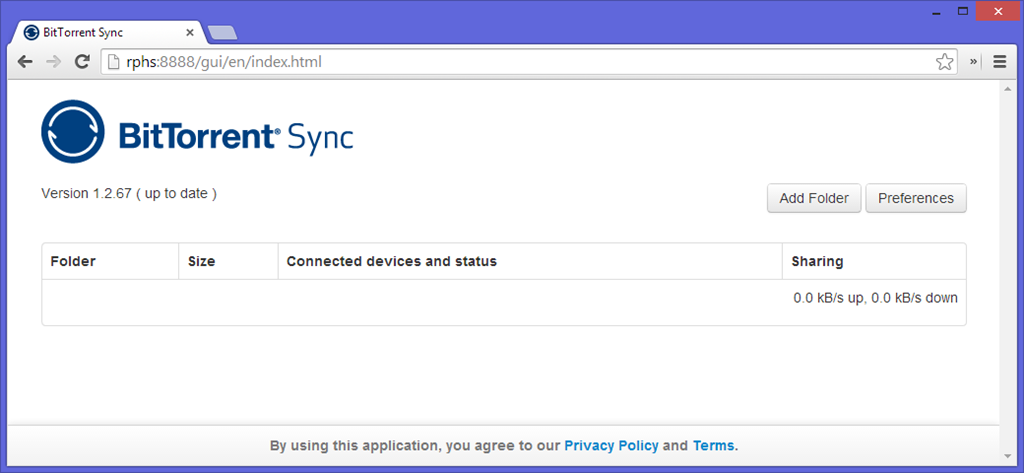
Open a browser to your Raspberry Pi’s IP address, port 8888.  This will bring you to BitTorrent Sync’s web interface. It doesn’t look like much, but that’s because you haven’t told it to sync anything yet.

image

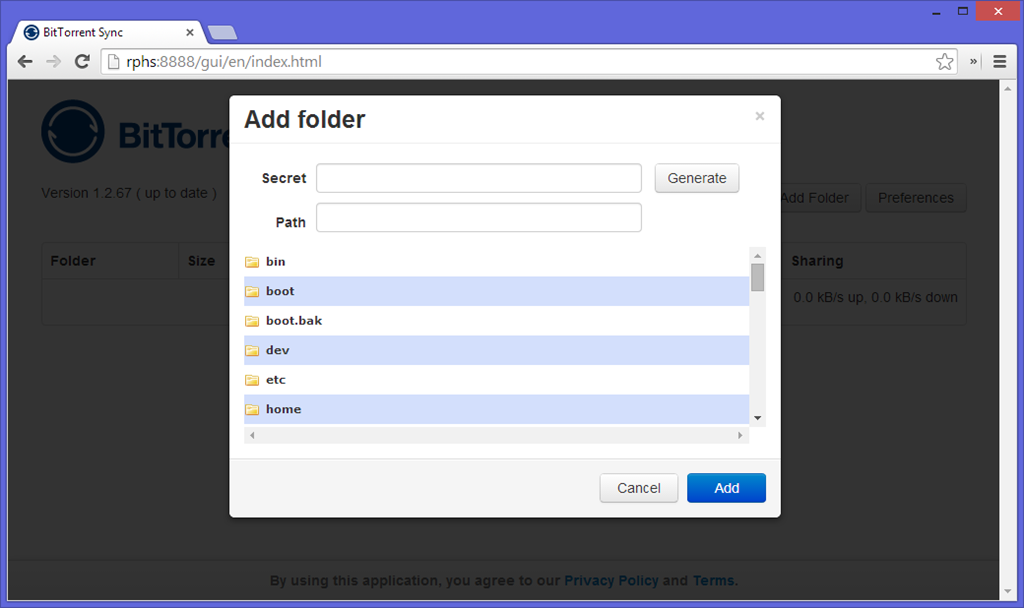
Click the “Add Folder” button. You’ll see a dialog like this:

image

Click the “Generate” button to create a new secret. Each Secret is unique, and you’ll actually get two of them; a full-access secret, and a read-only secret. Write the secret down somewhere, or save it in a file. You’ll need it later in order to sync the folder with other computers.

Use the folder view at the bottom to browse to /mnt/data/Sync, or whatever you decided to use, and then click “Add”. You’ll return to the list of synchronized folders, but now your sync folder has been added.

Other computers

BitTorrent Sync clients exist for Windows, Mac, Linux (obviously), and all major mobile platforms. Instructions for installing and configuring the clients will vary by platform, so I won’t cover that here. Whatever platform you’re on, install the client accordingly, and then use the secret you generated above to start syncing the files in that folder with the devices you choose.

Wrapping up

Unlike other “cloud sync” technologies, you own the cloud in this case, and you can do pretty much whatever you want with it. There are no size limits other than your available storage, and you can create as many individual shares as you want. Because of the granular way in which BitTorrent Sync shares your stuff between computers, you can choose to share individual folders with friends and family, and control whether they get full control, or read-only access.

BitTorrent Sync gives you total control of your own private cloud.

Posted in Computers and Internet, Home Server, Raspberry Pi | Tagged | 52 Comments

Raspberry Pi Home Server: Extra, SD cards gone bad

Note: This article is part of a series. See the Index for more information.

Update: I’ve recorded this series as a screencast for Pluralsight:
(http://www.pluralsight.com/courses/raspberry-pi-home-server)
If you have a Pluralsight subscription, please consider watching it. Thanks!


Sometimes bad things happen to SD cards, and Windows doesn’t always handle it gracefully. I’ve had cards that Windows refused to recognize, and SD Formatter wouldn’t touch. There are a number of ways to fix this. Sometimes, putting the card in a camera, and telling it to format the card will work. If that doesn’t work, all is not necessarily lost. Here are some steps you can try.

Remember that you will lose any information that was on the drive, so don’t do this if you need to recover data from the bad card. There are utilities out there for rescuing data from damaged cards, but that’s beyond the scope of this article.

Note: These instructions are written for a Windows user. The “fdisk” command in Linux performs similar operations, but you’ll have to look elsewhere for the walkthrough.

Remove the bad SD card, along with any other flash drives or SD cards from your computer so you don’t accidentally format the wrong one. Press the Windows key, and “R” together, type “diskpart” at the prompt, and press enter.

image_thumb3

You’ll find yourself looking at something that is almost, but not quite entirely, unlike a command prompt.

image_thumb5

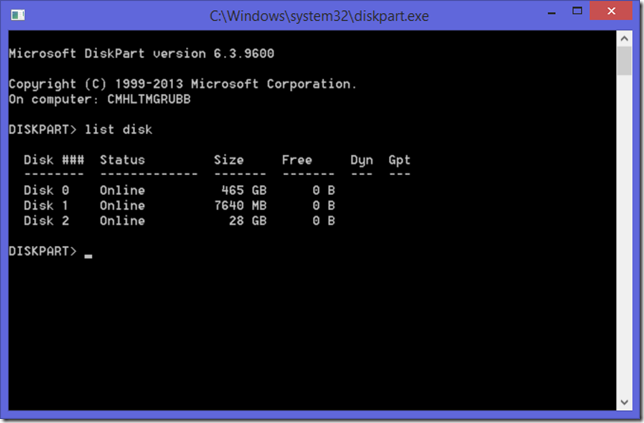
Type “list disk” to see all the disks in the computer.

image_thumb7

Now insert the bad SD card into your reader, and type “List Disk” again, and look for the disk that wasn’t there before.

image_thumb9

In this example, Disk 3 is the new entry in the list, and therefore the SD card that we want to reformat. Type “select disk x” where “x” is the number of the new disk from the list.

image_thumb11

Before proceeding, be VERY sure you’ve selected the right disk. We’re about to blow away its partition table. If you accidentally chose your primary hard drive, very bad things will happen. Don’t blame me. I warned you plenty.

Once you are ABSOLUTELY sure you have the right disk selected, type “clean” and press enter.

image_thumb13

The drive you selected is now a blank slate. Type “create partition primary” to create a brand-new partition table.

image_thumb15

Finally, format the new partition by typing “format fs=fat32 quick”. Don’t forget the “quick” part, or you’ll be waiting around a while.

image_thumb17

And that’s it. The drive is freshly formatted and ready to use again. If you open a file explorer window at this point, you should see your drive. It will still have its old name, but will be completely empty. Type “exit” to close diskpart. You can now proceed as usual.

Posted in Computers and Internet, Home Server, Raspberry Pi | Tagged | 9 Comments

Raspberry Pi Home Server: Part 13, WordPress

Note: This article is part of a series. See the Index for more information.

Self-promotion: I’ve recorded this series as a screencast for Pluralsight:
(http://www.pluralsight.com/courses/raspberry-pi-home-server)
If you have a Pluralsight subscription, please consider watching it. Thanks!

Updates: I haven’t had any reports of trouble with this post since the Jessie release of Raspbian came out, so I’m assuming it all still works until I hear otherwise.


The Raspberry Pi can do more than just share things inside your own house. It can host websites and blogs that you make available to the public. Why you’d want to do this rather than just put up a free blog on wordpress.com, well, that’s a question you’ll have to answer for yourself. I’m not judging. I’m just going to show you how to set it up.

Create WordPress database

Way back in part 4 of this series, you installed a LAMP stack. If you recall, the “M” was for “MySQL”, and while we haven’t done anything with it yet, it’s been there, waiting for someone to put it to use. The WordPress blog engine is going to use MySQL to store all of the content for a blog. Get yourself logged in as “pi”, and enter the following commands at the command prompt, replacing the highlighted passwords with something of your choice.

sudo mysql -uroot -p
create database wordpress;
create user wpuser;
set password for wpuser = password("PASSWORD");
grant all privileges on wordpress.* to wpuser@localhost identified by 'PASSWORD';
exit
sudo service mysql restart

Let’s break that down:

  • Open the MySQL command-line utility, logging in as root.
  • Create a brand-new database for WordPress to put stuff in.
  • Create a service account WordPress will use to talk to the database.
  • Set a password on that service account for WordPress to use when authenticating.
  • Make the service account the owner of everything in the new database.
  • Exit the MySQL command-line utilty
  • Restart MySQL to apply the changes

Install WordPress

WordPress will be installed just like everything else, using apt-get.

sudo apt-get install wordpress

Next, you’ll create a “symbolic link”, which means that all references to one address will be redirected somewhere else. Specifically, anything trying to get to http://SERVERNAME should go to the WordPress folder instead.

sudo ln -s /usr/share/wordpress /var/www

In the Linux world, almost everything maps into one unified file structure, even things that aren’t actually files, like web addresses. Just roll with it. Next, copy the provided sample configuration file into WordPress’ folder.

Note: Enter this all as one line, even though it’s wrapped here.

sudo cp /usr/share/wordpress/wp-config-sample.php /etc/wordpress/config-default.php

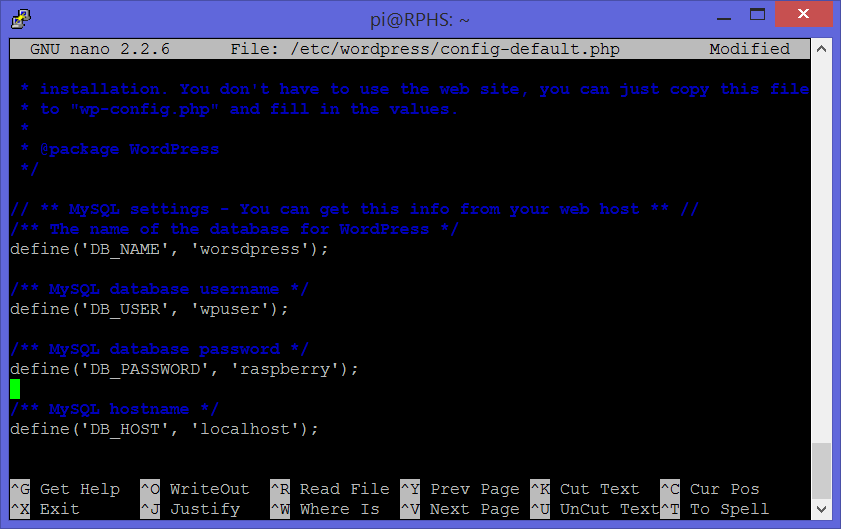
Edit the configuration file you just copied, replacing the DB_NAME, DB_USER, and DB_PASSWORD settings with values matching what you used in the previous step.

sudo nano /etc/wordpress/config-default.php

image

Exit Nano, saving your changes (ctrl-x, y, enter). Restart the Apache webserver so that it will notice the changes.

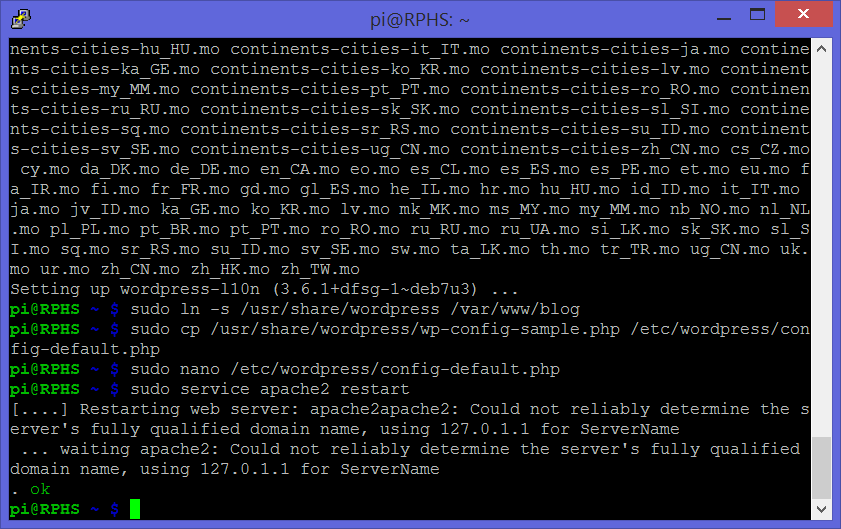
sudo service apache2 restart

The result should look something like this:

image

Configure WordPress

WordPress, being a web-based product, handles most of its configuration through its own web interface. Open a browser to your Raspberry Pi’s address, with an additional “/blog” on the end. That redirect you set up earlier will send the browser to WordPress, which will prompt for some initial values, and then complete its own installation.

Provide a title for your blog, a password for the admin user, and an email address that won’t work without some additional configuration anyway, and click “Install WordPress”

image

WordPress will do some initial configuration in the background, and let you know when it has finished.

image

Click the “Log In” button to go to the Log In form, where you’ll need to provide the name and password you just established.

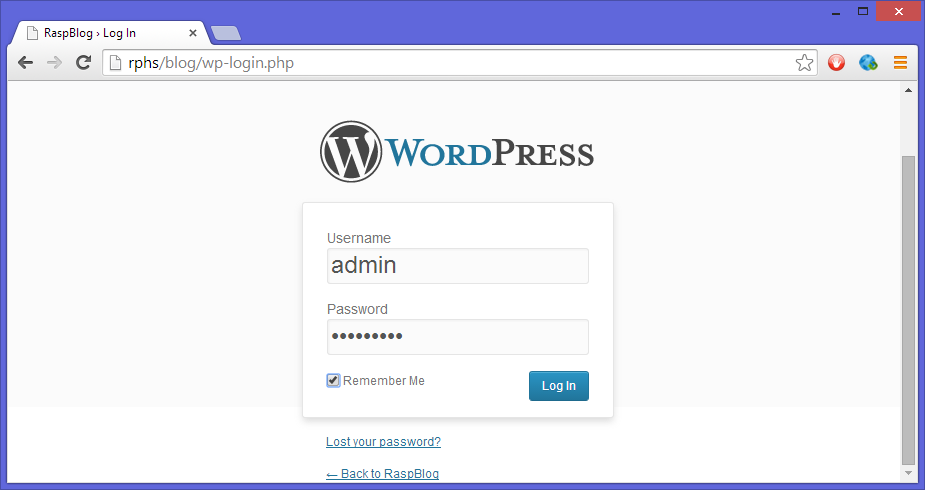
image

You’ll be taken to the WordPress Dashboard page. The care and feeding of a WordPress site is beyond the scope of this article, but I would like to point out one more thing that you’ll need to check. The addresses used by WordPress for things like links and style sheets are absolute addresses which include the name of the server. That server name might be set to “localhost” or an internal IP address right now.

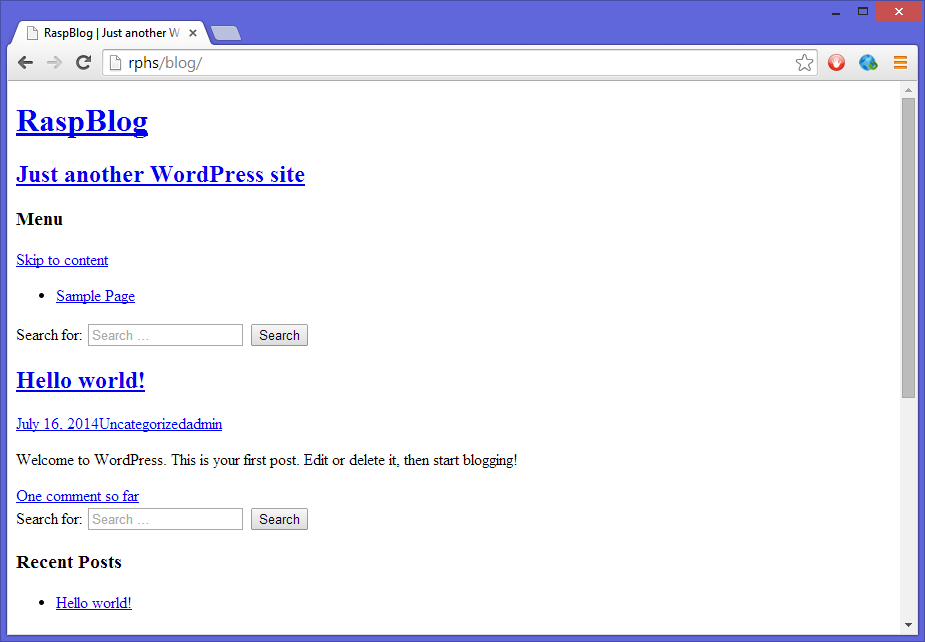
As it stands now, the WordPress site works for your internal network, but not for the rest of the world. If you try to look at the site from somewhere other than your home network, it may look something like this:

image

You need to fix the addresses so that they work from outside. You can use a static IP address, a domain name (if you own one), or a dynamic DNS service like DynDNS or no-ip.

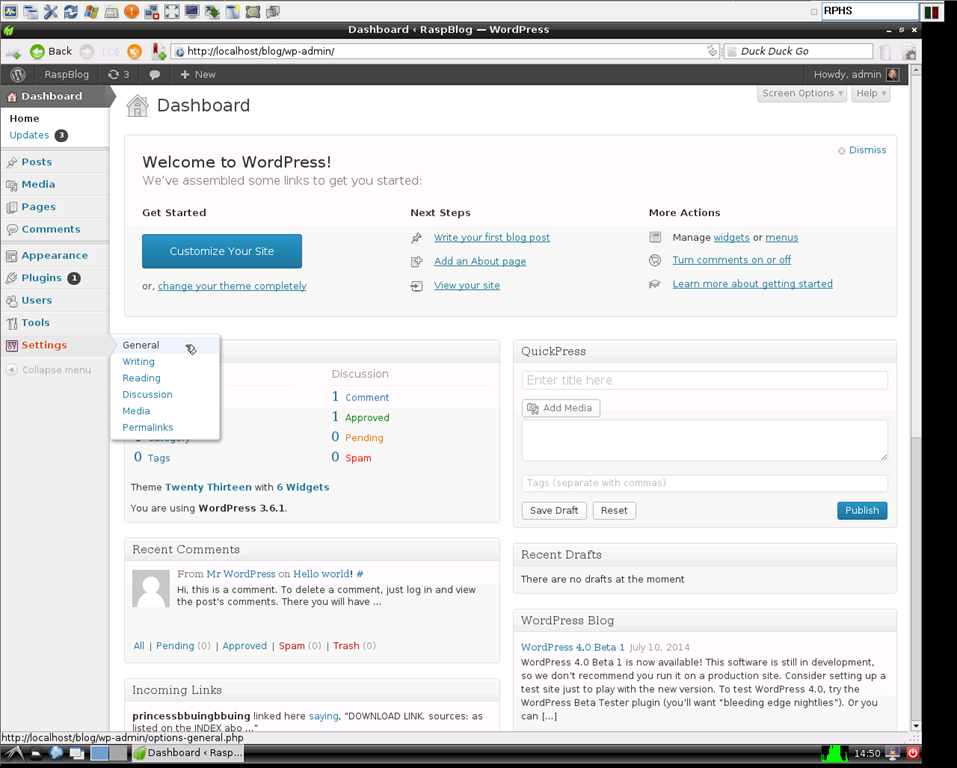
Navigate to http://localhost/blog/wp-admin, and log in with the credentials you established above. From the navigation menu on the left, go to Settings –> General

image

In the “General Settings” section, replace “localhost” or your internal IP address with an externally usable name or address in the “WordPress Address” and “Site Address” fields, and click the “Save Changes” button at the bottom of the page.

You should now be able to see the full site from other computers, whether they are on your home network or not.

What’s next?

I’m currently working on more jobs for the Raspberry Pi to do, and will add them to the series as I complete them. When that happens, I’ll update this article to link to them. For right now, though, this is the end of the line.

Posted in Computers and Internet, Home Server, Raspberry Pi | Tagged | 15 Comments

Raspberry Pi Home Server: Part 12, The LAMP Stack

Note: This article is part of a series. See the Index for more information.

Self-promotion: I’ve recorded this series as a screencast for Pluralsight:
(http://www.pluralsight.com/courses/raspberry-pi-home-server)
If you have a Pluralsight subscription, please consider watching it. Thanks!

Updates: I haven’t had any reports of trouble with this post since the Jessie release of Raspbian came out, so I’m assuming it all still works until I hear otherwise.


LAMP stands for “Linux, Apache, MySQL, and PHP”, and it’s the technology stack a lot of web projects in the Linux world are built on.

  • Linux is the OS, of course, the bottom layer of the stack.
  • Apache is a web server that runs on Linux.
  • MySQL is a database that applications can use to store their stuff.
  • PHP is a web programming technology used to write web applications.

If you’re not planning to run any web applications from your server, you can obviously skip this post. If you want to run WordPress, though, you’re going to need the LAMP stack. Through the magic of the Advanced Packaging Tool (APT), you could just install WordPress, and the dependencies would come along for the ride, but where’s the fun in that? I’d rather make sure I have a solid LAMP stack before installing any applications on top of it.

Linux

This was taken care of in previous posts. Log in to the Raspberry Pi as the “pi” user, and get to a command prompt. If you can do this, you’ve handled the “L” part.

Apache

To install the next layer of the stack, the Apache web server, version 2, type the following command, answering “Y” when prompted to confirm.

sudo apt-get install apache2

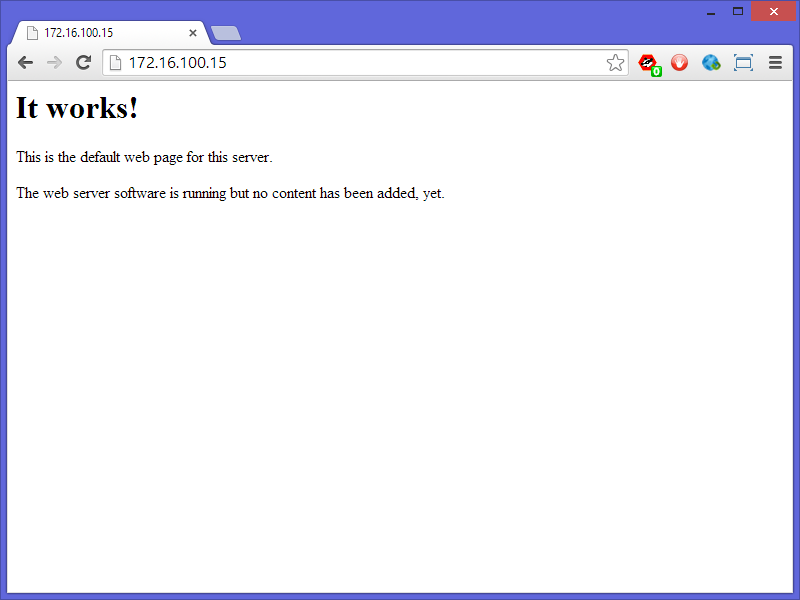
If everything went well, you should now have a working web server. You can test this by opening a browser from another computer on your network, and navigating to the address of the Raspberry Pi. You should see a generic “It Works!” message.

image

MySQL

Next up is the MySQL database engine, which applications will use to store their information. Type the following to install MySQL:

sudo apt-get install mysql-server-5.5

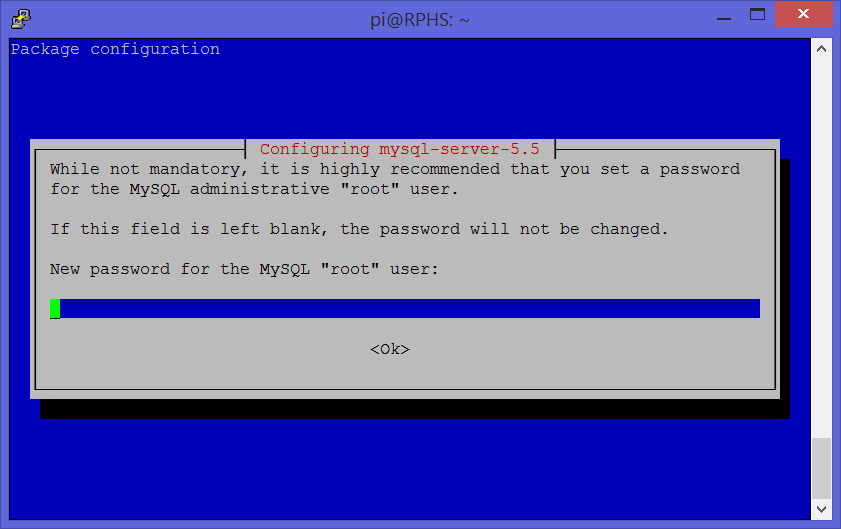
You’ll be prompted multiple times during the install to provide a password for the root user. It should look like this:

image

This is not the same “root” as Linux itself. This is a MySQL database account that will own the server. Whatever password you/u assign, make sure you write it down somewhere, or put it in a password safe program. You will eventually need it.

When the installation has completed, check to see that MySQL is working by typing the following:

sudo mysql –uroot -p

This says to start the MySQL command-line interface, as the Linux user “root” and log in as the MySQL user “root”, prompting for the root password.

To get a list of databases on the new MySQL server, type “show databases;” (don’t forget the semicolon). You should see a list similar to this:

image

Note: If you do somehow forget the semicolon (even though I specifically mentioned it), you can always type a single semicolon on a line by itself and press enter to complete the command.

Type “exit” to get out of the MySQL command line and back to the regular Linux command line. Now that MySQL is installed, there is some security configuration that needs to be done. Fortunately, a script exists that will take care of it for you. Type the following to run the script that will lock down the MySQL installation, providing the password you chose above when prompted.

/usr/bin/mysql_secure_installation

If you didn’t assign the root user a password, then just hit enter when prompted for it, and “n” when prompted to set one.

PHP

So far you have the L, A, and M layers installed. Last up, you need PHP. Actually, you need a few different PHP components. Install them all in one shot by passing all of their names to apt-get at once like this:

sudo apt-get install php5 php5-mysql php5-gd

This installation will take a little while. I don’t have a simple test for you to verify the PHP installation, but you’ll know if it works soon enough.

What’s next?

In the next post, we’ll add WordPress so that you can run a small blog from home.

Posted in Computers and Internet, Home Server, Raspberry Pi | Tagged | 15 Comments

Raspberry Pi Home Server: Part 11, OpenVPN

Article Obsolete

A new version of this series has been published. Please refer to the new index for updated articles and ordering. This article is kept for historical reference, but should be considered out of date.


Note: This article is part of a series. See the Index for more information.

Self-promotion: I’ve recorded this series as a screencast for Pluralsight:
(http://www.pluralsight.com/courses/raspberry-pi-home-server)
If you have a Pluralsight subscription, please consider watching it. Thanks!

Updates: EasyRSA is no longer installed as part of openvpn, but you can install it through apt-get just like anything else. Just add “easy-rsa” to the list of things to install early on. It will end up in a different place as well, so the command to copy the scripts is now “sudo cp -r /usr/share/easy-rsa /etc/openvpn/easy-rsa”

The export variables at the bottom of vars have moved around a little, there’s now only one copy of your email address, and CN is commented out at the very bottom by default. Just fill in the variables that are present, and leave CN commented out.


Now that the whole house is humming along, sharing files, downloading things, and backing everyone up, you might be wondering if there’s anything left that the Raspberry can do for you. The answer is yes. In this article, we’ll set up the Raspberry Pi to act as an OpenVPN server, allowing you to access your home network from anywhere. OpenVPN is an open-source, cross-platform, virtual private networking (VPN) application. VPNs let you route internet traffic through a secure, encrypted channel, back to a network that you trust and/or control. You may have used one in order to securely access resources on the network at your office when you’re on the road. Developers sometimes use them to simulate traffic coming into their network from outside for testing. You can add these same abilities to your home network so that you can get to your stuff from work, or a hotel, or anywhere else with internet access. Running your own VPN means that no matter where you get an internet connection from, you are effectively “at home”. You don’t need to worry about fellow patrons at the coffee shop listening in on your network traffic because the traffic between you and your VPN is highly encrypted.

Acknowledgements

Once again, I didn’t invent this stuff. Most of the information about how to set up OpenVPN comes from a whitepaper by Eric Jodoin of the SANS institute. That whitepaper was later paraphrased and simplified in a pair of posts by Lauren Orsini. Both are excellent reading, and go into far more depth about how all this stuff works than I plan to. I’m just putting it into the same format as the other posts in the series, and organizing them in a logical progression, building on top of the previous posts in this series.

Prerequisites

In order to connect to your home network’s VPN when you are away from home, you are going to need either a static IP address, or a dynamic IP resolution service like www.no-ip.org. My home router updates no-ip automatically, so I have not set up a program on the Raspberry Pi to do this. Other tutorials exist out there to handle this part.

Internet security

Warning: The explanation that follows is super-non-technical™, and probably wildly inaccurate in many important ways. I am not a security or cryptography expert, but this is, in layman’s terms, how internet security works. When you visit your bank’s website, and something in your address bar turns green, or grown a little lock, it means that someone at the bank went to some authority that we’ve all agreed to trust, and got a certificate that says “Yup these guys are the bank alright”, and installed it on the web server you’re talking to. As long as you trust the people that made the certificate to only give it to the company that paid for it, and as long as you trust the bank to only install the certificate on their own servers, then you have a way to prove that the server you’re talking to belongs to the company you think it does, or at least a company that the authority vouched for. Although I’m sure you trust your own word that the Raspberry Pi Home Server that you’ve been building is your own, your other computers are still going to want proof that the thing on the other side of the internet is your server, and not someone else pretending to be your server. That’s kind of the whole point of this exercise, after all. Since you trust yourself, you can act as your own “certificate authority” and make your own certificates. You then install your homemade certificates on both the server and the client, and they use that certificate to encrypt traffic back and forth between them.

Install OpenVPN

First things first, you’ll need to install the OpenVPN software onto the Raspberry Pi. You’ll also need the OpenSSL package in order to secure your connection later on. Installing both is as simple as…

sudo apt-get install openvpn openssl

That’s the easy part. Now comes the configuration. The installer has created some sample configuration files for us, and they’ll form the skeleton of the configuration. Copy the entire directory of sample configuration files like this:

sudo cp -r /usr/share/doc/openvpn/examples/easy-rsa/2.0 /etc/openvpn/easy-rsa

Open the vars file for editing.

sudo nano /etc/openvpn/easy-rsa/vars

Find the “EASY_RSA” entry, set it as follows:

export EASY_RSA="/etc/openvpn/easy-rsa"

Move to the bottom of the file, and change the defaults that are defined there to match your location and network. This will save you some time later on when you are asked to provide this information again for each user you set up. Mine looks like this:

export KEY_COUNTRY="US"
export KEY_PROVINCE="OH"
export KEY_CITY="Columbus"
export KEY_ORG="Home"
export KEY_EMAIL=melgrubb@…

Explaining the next few settings is a little out of my depth, but I’ll try to explain to the best of my understanding.

export KEY_CN=RPHS
export KEY_NAME=RPHS
export KEY_OU=RPHS
export PKCS11_MODULE_PATH=RPHS
export PKCS11_PIN=1234

Most of these can be anything you want, but the KEY_CN setting must be unique, so if you’re going to make more than one VPN server, give them different values. I’ve chosen to make my “Common Name” (CN) the same as the name of the server. KEY_NAME will affect the name of the resulting key file, but is otherwise arbitrary. The organization unit (OU) setting is not important for a small home network, so I’ve just gone ahead and used the server name again. Basically, you can just make all of these values the same thing, and you’ll be just fine. The last two settings have to do with smart cards, which we’re not even going to get into. Close Nano, saving the file (ctrl-x, y, enter)

Become a certificate authority

In order to create certificates, you’ll need… wait for it… a certificate. In this case, it’s a “root certificate”. This is the kind of thing that one of the trusted authorities out on the web would have. The “easy-rsa” package you installed earlier can generate such a certificate for you. Run the following commands to set up a key server. Notice that the “sudo su” command is being used here. You’re going to stay in “god mode” for pretty much the remainder of this post.

cd /etc/openvpn/easy-rsa
sudo su
source ./vars
./clean-all
./build-ca

This last command will prompt you for a lot of values, fortunately, you set up reasonable default values above, so you can just hit enter to accept them. image

Note: Newer installations will say “Generating a 2048 bit RSA private key”. This default has changed since I originally published this article. Pay attention to what your installation says because you’ll need to know this in a minute. Also, 2048-bit keys take a LOT longer to generate, so your screen is going to look quite different than this screenshot.

When that finished, enter the following command, accepting the defaults again. You’ll get a couple extra questions this time. Make sure the “challenge password” is blank, and accept any other defaults.

./build-key-server RPHS

Answer yes to the “Sign the certificate?” and “commit?” prompts. image

Generate keys

You may be able to just take your bank’s word for it that they are who they say they are, but VPN servers like, the one we’re building, want proof of the client’s identity as well. They won’t let just anyone in. You need to give a key to each device or user you want to allow to connect to the VPN server. You have a decision to make at this point. You could generate a unique key for each individual device that you want to connect via VPN, or you could take a shortcut and generate a key for each user. The difference is whether you expect to need to connect more than one device at the same time. If you don’t need to connect more than one device per user at the same time, generate a key named for the user. If you think users will need more than one device connected at the same time, I’d suggest naming the key after the device.  Whichever you decide, generate a key like this:

./build-key-pass NAME

Accept the defaults again, leaving the challenge password blank. The PEM password, is the password you’ll need to connect using the key. Pick something nice and strong, but also something you won’t forget. If you want to be really paranoid, you could randomly generate one and keep it in a password safe. The choice is yours. Leave the challenge password blank again. Sign and commit the certificate when prompted. image Almost done.

cd keys
openssl rsa -in NAME.key -des3 -out NAME.3des.key

Use the same password as you did before. You’ll have to enter it three times. Technically, the first time is a different password, but how are you supposed to keep them straight?

cd ..
./build-dh

You may need to wait a while for this last step. Sometimes you get lucky, and this step is short. sometimes you’re unlucky, and it takes a long time. You never know what kind of wait you’re in for up front. When it’s done, generate a hash-based message authentication code (HMAC). This is yet another layer of protection, and helps to prevent denial of service (DOS) attacks.

openvpn --genkey --secret keys/ta.key

Configure OpenVPN Server

Now it’s finally time to edit the OpenVPN configuration and tie up the loose ends.

nano /etc/openvpn/server.conf

You’ll notice that the editor is totally blank. That’s because this file doesn’t exist yet. Paste in the following text, substituting your own values for the highlighted values. You’ll need your Raspberry Pi’s IP address, the IP address of your router, and the name you used above when calling build-key-server.

Note: I have also highlighted the 8th line, where it says “dh2048.pem”. Older installations defaulted to a 1024-bit key, so you will need to adjust this if you’re working with an older installation. If you’re installing it for the first time, however, this should say 2048 these days. Just make it match what the build-ca step said above.

local 192.168.1.XXX # YOUR PI'S IP ADDRESS
dev tun
proto udp
port 1194
ca /etc/openvpn/easy-rsa/keys/ca.crt
cert /etc/openvpn/easy-rsa/keys/RPHS.crt
key /etc/openvpn/easy-rsa/keys/RPHS.key
dh /etc/openvpn/easy-rsa/keys/dh2048.pem.pem
server 10.8.0.0 255.255.255.0
# server and remote endpoints
ifconfig 10.8.0.1 10.8.0.2
# Add route to Client routing table for the OpenVPN Server
push "route 10.8.0.1 255.255.255.255"
# Add route to Client routing table for the OpenVPN Subnet
push "route 10.8.0.0 255.255.255.0"
# your local subnet
push "route 192.168.1.0 255.255.255.0" # YOUR PI'S IP SUBNET
# Set primary domain name server address to the SOHO Router
# If your router does not do DNS, you can use Google DNS 8.8.8.8
push "dhcp-option DNS 192.168.1.1" # YOUR ROUTER'S IP ADDRESS
# Override the Client default gateway by using 0.0.0.0/1 and
# 128.0.0.0/1 rather than 0.0.0.0/0. This has the benefit of
# overriding but not wiping out the original default gateway.
push "redirect-gateway def1"
client-to-client
duplicate-cn
keepalive 10 120
tls-auth /etc/openvpn/easy-rsa/keys/ta.key 0
cipher AES-128-CBC
comp-lzo
user nobody
group nogroup
persist-key
persist-tun status /var/log/openvpn-status.log 20
log /var/log/openvpn.log
verb 1

Exit nano, saving your changes (ctrl-x, y, enter) Next, you need to allow the Raspberry Pi to forward IP traffic, which it does not do by default.

nano /etc/sysctl.conf

Find the line that says “Uncomment the next line to enable packet forwarding for IPv4”, and uncomment the line immediately after it.

# Uncomment the next line to enable packet forwarding for IPv4
net.ipv4.ip_forward=1

Exit Nano, saving your changes (ctrl-x,y,enter), and force a reload of the settings.

sysctl -p

Configure Firewall

The Raspberry Pi has its own firewall, which must be configured to allow the VPN traffic through. Create a script file to automate the opening of the appropriate ports.

nano /etc/firewall-openvpn-rules.sh

Copy in the following text, substituting your own Raspberry PI’s IP address where highlighted.

#!/bin/sh

iptables -t nat -A POSTROUTING -s 10.8.0.0/24 -o eth0 -j SNAT --to-source 192.168.1.XXX

Change the permissions on the file you just created so that it can be executed, and assign ownership to the root user.

chmod 700 /etc/firewall-openvpn-rules.sh
chown root /etc/firewall-openvpn-rules.sh

This script file needs to run every time the Raspberry Pi boots up in order to do us any good. Edit the /etc/network/interfaces file.

nano /etc/network/interfaces

Find the line that configures the wired ethernet port. If you are running your server wirelessly, then you’ll need to adjust accordingly. Insert a new line, indented underneath so that the result looks like this:

...
iface eth0 inet dhcp
    pre-up /etc/firewall-openvpn-rules.sh
...

This will ensure that the firewall rules are applied to that network interface even before it has started up. Reboot the Raspberry Pi so that the rules are applied.

sudo reboot

Generating client keys

Connecting a VPN client to a remote server takes a bit of configuration, too. The OpenVPN client has to know where the server is, and it has to have a copy of the keys we generated earlier. All of this configuration gets wrapped up into a file with a .ovpn extension. You can create these by hand if you like, but Eric Jodoin, the author of the original SANS.org article was kind enough to write a script to do it for us. Create the script file.

nano /etc/openvpn/easy-rsa/keys/MakeOVPN.sh

This is a new file, so it will be totally blank. Paste in the following:

#!/bin/bash

# Default Variable Declarations 
DEFAULT="Default.txt" 
FILEEXT=".ovpn" 
CRT=".crt" 
KEY=".3des.key" 
CA="ca.crt" 
TA="ta.key" 
 
#Ask for a Client name 
echo "Please enter an existing Client Name:"
read NAME 
 
#1st Verify that client's Public Key Exists 
if [ ! -f $NAME$CRT ]; then 
echo "[ERROR]: Client Public Key Certificate not found: $NAME$CRT" 
exit 
fi 
echo "Client's cert found: $NAME$CR" 
 
#Then, verify that there is a private key for that client 
if [ ! -f $NAME$KEY ]; then 
echo "[ERROR]: Client 3des Private Key not found: $NAME$KEY" 
exit 
fi 
echo "Client's Private Key found: $NAME$KEY"

#Confirm the CA public key exists 
if [ ! -f $CA ]; then 
echo "[ERROR]: CA Public Key not found: $CA" 
exit 
fi 
echo "CA public Key found: $CA" 

#Confirm the tls-auth ta key file exists 
if [ ! -f $TA ]; then 
echo "[ERROR]: tls-auth Key not found: $TA" 
exit 
fi 
echo "tls-auth Private Key found: $TA" 
 
#Ready to make a new .opvn file - Start by populating with the default file 
cat $DEFAULT > $NAME$FILEEXT 
 
#Now, append the CA Public Cert 
echo "" >> $NAME$FILEEXT 
cat $CA >> $NAME$FILEEXT 
echo "" >> $NAME$FILEEXT

#Next append the client Public Cert 
echo "" >> $NAME$FILEEXT 
cat $NAME$CRT | sed -ne '/-BEGIN CERTIFICATE-/,/-END CERTIFICATE-/p' >> $NAME$FILEEXT 
echo "" >> $NAME$FILEEXT 
 
#Then, append the client Private Key 
echo "" >> $NAME$FILEEXT 
cat $NAME$KEY >> $NAME$FILEEXT 
echo "" >> $NAME$FILEEXT 
 
#Finally, append the TA Private Key 
echo "" >> $NAME$FILEEXT 
cat $TA >> $NAME$FILEEXT 
echo "" >> $NAME$FILEEXT 
 
echo "Done! $NAME$FILEEXT Successfully Created."

Exit Nano, saving your changes (ctrl-x,y,enter) Once again, because this is a script, permissions will have to be altered to allow it to run.

chmod 700 /etc/openvpn/easy-rsa/keys/MakeOVPN.sh

Create the Default.txt file to hold the default values the script will use. The casing isn’t important, but it must match what was specified at the top of the script file. I’m keeping the capitalized “D” just to keep it the same as anyone else who followed Eric’s instructions.

nano /etc/openvpn/easy-rsa/keys/Default.txt

Paste in the following, substituting your public IP address for the highlighted text. If you don’t have a static public IP address, you can use a dynamic name from a service like DynDNS or no-ip here as well. The “1194” is the standard port number OpenVPN uses, adjust as needed to match your network configuration.

client
dev tun
proto udp
remote YOUR_PUBLIC_IP_ADDRESS 1194
resolv-retry infinite
nobind
persist-key
persist-tun
mute-replay-warnings
ns-cert-type server
key-direction 1 
cipher AES-128-CBC
comp-lzo
verb 1
mute 20

Exit Nano, saving your changes (ctrl-x,y,enter) Execute the script to create a .ovpn file. Remember to use the user or device name you chose earlier when creating the client key. cd /etc/openvpn/easy-rsa/keys ./MakeOVPN.sh The result is a NAME.ovpn file in the /etc/openvpn/easy-rsa/keys folder on the Raspberry Pi. That’s great, but we need the key on the client machine. You can copy the file using a secure copy program like WinSCP, copy it to a flash drive and move it by hand, or any other number of ways to move a file around. Since this is my own private home server, I’m going to put the file on the data share, at least temporarily. Once the key is installed and working on the client, I’ll delete it from the server.

cp /etc/openvpn/easy-rsa/keys/NAME.ovpn /mnt/data/

Keys like this aren’t something you should leave lying around. On the other hand, you should probably have a backup of them somewhere. If you put them on a flash drive, go put it in a safe or something. Don’t let anyone get a hold of your keys, or they have a free pass into your home network, and you may not even notice it. You can always go back and generate new keys, delete the compromised ones, and continue on, of course.

Port forwarding

Before you’ll be able to connect to your home network from outside, you’ll need to set up your router to forward all traffic on port 1194 to the Raspberry Pi. I can’t tell you how to configure the firewall on your router at home because I don’t know what kind of router you have. An excellent resource that may have information specifically for your router is http://portforward.com/.

Client configuration

I’m using the OpenVPN client for Windows, but the instructions should be similar for other platforms. You can download open-source clients for Windows, and source tarballs for other systems from here. Note: Don’t try to download client software from the links on the front page of the OpenVPN site or you’ll just end up with “SecureTunnel”, a paid-subscription-based system that lets you do exactly what you’re already set up to do on your own. Get the .ovpn file that you generated on the Raspberry Pi over to the computer you’re going to connect from, and put it in the OpenVPN config folder. For Windows users, this should be C:\Program Files\OpenVPN\config.

Connecting the client

You’ll need to be somewhere other than on your own network for this next part. Otherwise you’re seriously crossing the streams, shutting down the containment grid, etc. Disconnect from your home network and tether yourself to a phone or something before continuing. Run the OpenVPN GUI application. It should have created a shortcut in your start menu for Windows 7 users, or on your app list for Windows 8 users. Run it, and it should pick up on the .ovpn file and open a connection. You’ll be prompted for the password you created earlier, and if everything is configured correctly, the OpenVPN icon in your notification area should turn green, and you’ll be effectively connecting to the outside world as part of your home network. There are, of course, many issues you could run into when using a VPN. Most of them are explained pretty well on the HowTo page of the OpenVPN site. One of the more vexing problems is that of disambiguating IP addresses between your home network, and the network you are connected to. See “Numbering Private Subnets” for more information.

What’s next

With this article complete, you’ve built a home server that’s covering all of the essentials. From here on out, we’ll be adding bells, whistles, fringe on top, etc. In the next post, we’ll add the LAMP stack, which forms the basis for most Linux-based web projects. If you want to run a website, a blog, or just a few web applications, you’ll probably need this.

Posted in Computers and Internet, Home Server, Raspberry Pi | Tagged | 106 Comments

Raspberry Pi Home Server: Part 9, Transmission

Note: This article is part of a series. See the Index for more information.

Self-promotion: I’ve recorded this series as a screencast for Pluralsight:
(http://www.pluralsight.com/courses/raspberry-pi-home-server)
If you have a Pluralsight subscription, please consider watching it. Thanks!

Updates: I haven’t personally tested Transmission under the Jessie release of Raspbian because I haven’t been terribly happy with its performance and stopped using it, but no-one has reported any issues, so I’m under the impression that it all still works. I will update if anything comes up.


Sometimes you want to download something large. For instance, the Raspbian or NOOBS file that started off this whole series. “Transmission” is a cross-platform BitTorrent server that will run quite happily on a Raspberry Pi.

What’s a BitTorrent?

Let’s say I wanted to download the NOOBS zip file. I could get it straight from the Raspberry Pi website, but that means that I’m competing for bandwidth with all of the other people trying to get that same file, and that bandwidth is costing the Raspberry Pi Foundation money, money they could be using to build more cool toys.

Torrents work by asking all of the computers downloading a particular file to talk to each other and trade the bits they already have amongst each other instead of everybody downloading the same bits of the same file from the Raspberry Pi Foundation’s server. Through the magic of BitTorrent, one computer could says to the others “Hey, I already have the first half of the file, does anyone have the second?”, and another computer might answer “Well, I don’t have the whole second half, but I have most of it. I’ll give you what I have if you give me the first third, ‘cause I’m totally missing that”.

At the center of it all is one computer that started the whole thing off by hosting the complete file first, and staying on to serve as “matchmaker” when new computers get added to the mix. In the case of the NOOBS software, that’s the Raspberry Pi Foundation’s server again. The foundation’s server started with a complete copy of the file, from which it created a .torrent file. The .torrent file describes the file you’re trying to get, providing information like how big it is, how many chunks it’s been broken into, and providing a checksum hash of the complete file so that you can be sure you got all the pieces right, and to stop jerks from ruining it for everyone by hosting files with the wrong bits in them.

You start a download of the large file you want by first downloading the much smaller .torrent file. You feed this file to a BitTorrent client like Transmission, which contacts the original server to see what peers are online sharing the load. Then, the client starts getting bits from all the different peers in the network, and only contacting the original server for those parts that no-one else has yet.

When the download of the large file is complete, the client stays online as part of the network, and just keeps on sharing (or “seeding”) the bits of the large file to anyone else who might need them.

Torrents have a kind of a bad reputation since they have become a kind of ersatz peer-to-peer file sharing mechanism for trading things like Hollywood movies, but they can be terribly useful for anyone that wants to mitigate the bandwidth costs of distributing large files on the internet.

Installing Transmission

To install the Transmission “daemon” (that’s a “service” to you Windows folks), type the following at the command prompt.

sudo apt-get install transmission-daemon

It’s a pretty simple installation, but will require some configuration before it’s ready to use.

Configuring Transmission

Before editing the configuration file, make sure the transmission daemon is stopped.

sudo service transmission-daemon stop

Transmission keeps its settings in a JSON-formatted text file. Open it in the nano editor with the following command.

sudo nano /etc/transmission-daemon/settings.json

Change the following settings, modifying the download path to match whatever you called your external drive, and changing the password:

"download-dir": "/mnt/data/Downloads",
"rpc-enabled": true
"rpc-whitelist-enabled": false
"rpc-username": "transmission"
"rpc-password": "raspberry"

Exit Nano, saving your changes (ctrl-x,y,enter).

Once again, a program is managing its own list of passwords. You get that a lot in the Linux world. I’ve kept the default user name of “transmission” here, and used the default password for “pi”. Pick whatever you want. Finally, restart the transmission daemon (service).

sudo service transmission-daemon start

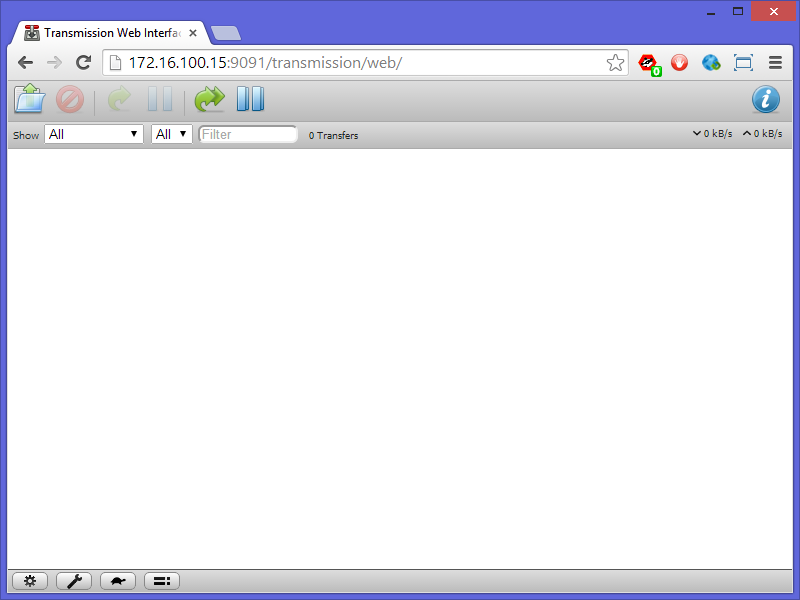
Transmission provides its own web interface, so there is nothing to add to Webmin. Open a browser and navigate to the Raspberry Pi, port 9091. You should see the Transmission interface, which is pretty basic.

image

Time to give back

At this point, I’d like to suggest that you seed the archives for NOOBS and other Raspberry Pi images. Click on the open folder icon in the top left, enter the url of one of the torrent files, and click “Upload”.

The latest version of the NOOBS and Raspbian torrents are always available from the following addresses:

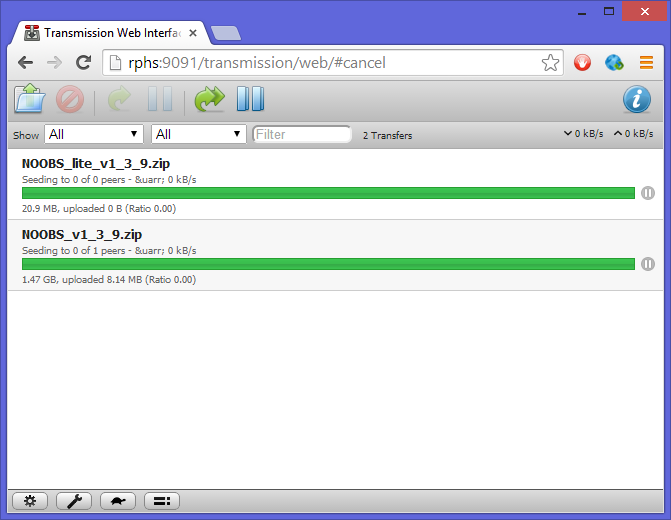
A row for each .torrent file you upload will be added to the list, and the torrent will begin downloading. Click on the new row to select it, and click the blue “i” icon in the upper right to get more detailed information about how the download is progressing. When all the bits have finished downloading, and a torrent goes into “seeding” mode, its progress bar will turn green like this:

image

You might consider seeding all of the Raspberry Pi images if you can spare the space. Remember to pay attention to how much CPU is being used, and don’t overtax your Pi. If you seed too many torrents, there may not be much CPU left for other tasks.

There are Transmission “remote control” applications available for many platforms that will give you greater control over the download process, but they are beyond the scope of this post. You can start by looking at the Add-Ons section of the Transmission website (https://www.transmissionbt.com/resources)

What’s next?

In the next post, we’ll add CrashPlan, so that the Raspberry Pi can back up your other computers.

Posted in Computers and Internet, Home Server, Raspberry Pi | Tagged | 7 Comments

Raspberry Pi Home Server: Part 8, MiniDLNA Media Server

Article Obsolete

A new version of this series has been published. Please refer to the new index for updated articles and ordering. This article is kept for historical reference, but should be considered out of date.


Note: This article is part of a series. See the Index for more information.

Self-promotion: I’ve recorded this series as a screencast for Pluralsight:
(http://www.pluralsight.com/courses/raspberry-pi-home-server)
If you have a Pluralsight subscription, please consider watching it. Thanks!

Updates: Substitute “jessie” for “wheezy” when adding apt-get sources. Other than that, everything remains the same under the Jessie release of Raspbian.


Now that the Raspberry Pi is on the network, and sitting on top of a (hopefully) massive pile of your media on its external drive, it would be nice to have it share that media in a form other than simple file shares. File shares are great for a lot of things, but Media can be done a little better.

DLNA (Digital Living Network Alliance… what a horrible acronym) is the technology standard that lets you play songs from your phone and have them come out of the stereo in your living room. It’s not ubiquitous yet, but it’s catching on. It also lets programs like Windows Media Player play music and video “libraries” that are being shared by other computers on the network.

The Raspberry Pi is about to become one of those libraries.

Installing MiniDLNA

This installation will be done from the command line, and involves a bit more configuration than some of the other features in this series. Get yourself logged in to a command line as “pi”, and start by installing MiniDLNA.

sudo apt-get install minidlna

As installs go, this one’s pretty quick, but there is a bit of configuration to be done before it’s ready to go. Start by editing the MiniDLNA defaults:

sudo nano /etc/default/minidlna

Find the line that says “#USER=”minidlna””, and remove the pound sign / hash mark from the beginning, so that if just says “USER=”minidlna””. Do the same for the “GROUP=” line right below it. Close and save the file (ctrl-x,y,enter).

Next, edit the main MiniDLNA configuration file.

sudo nano /etc/minidlna.conf

There are several things to be done here. The first is to set up the folders that will hold the various kinds of media you want shared. A little way down the file, find the first line that isn’t a comment. It should say something like “media_dir=/var/lib/minidlna”. On my drive, there are separate folders for Music, Pictures, and Videos, so I’ll add multiple media_dir lines, one for each kind of media. The comments in the file do a pretty good job explaining the syntax, but for reference, here’s what mine says:

media_dir=A,/mnt/data/Documents/Music
media_dir=P,/mnt/data/Documents/Pictures
media_dir=V,/mnt/data/Documents/Videos

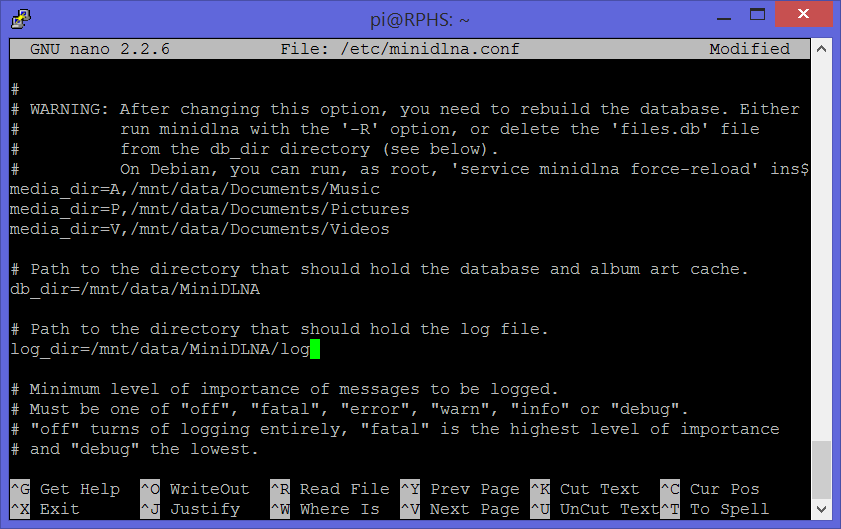
The letters A, P, and V indicate what kind of content each folder contains (audio, pictures, or video). Next, change the database and log folders to go to the data partition as well. This will conserve space on the relatively small OS partition. The lines to configure this are just below the media_dir lines modified above. Remove the pound signs, and change the folder paths:

db_dir=/mnt/data/MiniDLNA
log_dir=/mnt/data/MiniDLNA/log

The result should look something like this:

image

Further down the file, uncomment the two settings “inotify” and “notify_interval”. This will allow MiniDLNA to update its database approximately every fifteen minutes with new or updated files.

Close and save the file (ctrl-x,y,enter). Next, you need to set up MiniDLNA to run automatically at boot time.

sudo update-rc.d minidlna defaults

And finally, manually start the MiniDLNA service.

sudo service minidlna start

MiniDLNA Web Administration

A Webmin module exists for MiniDLNA that will make it easier to manage things remotely in the future. It is available at http://sourceforge.net/projects/minidlnawebmin/files. Pick the latest version, and download the .wbm file to somewhere convenient. You could download this through a browser directly on the Raspberry Pi if you want, but I’ll write the directions for downloading it from your primary computer.

Once the .wbm file is downloaded, go to Webmin –> Webmin Configuration, and click on “Webmin Modules”. Pick “From uploaded file”, click the “Choose File” button, and browse to find the file you just saved. Click “Install Module”, and the MiniDLNA module will be installed.

You should now have an entry under Servers called “MiniDLNA server”. This module is pretty simple, and does little more than show you the settings from its configuration file. Down at the bottom of the page, though, are two buttons that you can use to restart the server, or force it to rescan its folders immediately.

Click on “Rescan” to force MiniDLNA to start indexing the files on the hard drive.

Warning: Depending on the size of your media collection, it may take the poor little Raspberry Pi quite a while to index everything (mine took almost two days). If you look at your CPU usage, you’ll see that it stays pretty much pegged for as long as it takes. Don’t worry, you haven’t reached the Pi’s limit, at least not permanently. When it has finished indexing, you’ll see its usage drop back to almost nothing.

You should now be able to open something like Windows Media Player, and see an entry for “RPHS: minidlna” in the list on the left. Drilling down into this entry will show you the media that has been indexed so far.

image

I am not a MiniDLNA expert, by any means, so you might want to look elsewhere for more configuration information. Also, MiniDLNA has recently changed names to become “ReadyMedia”, but a new release does not seem to be ready for use on the Raspberry Pi at the time I’m writing this.

What’s next?

In the next post, we’ll add a BitTorrent server for downloading things from the internet.

Posted in Computers and Internet, Home Server, Raspberry Pi | Tagged | 22 Comments